Stop Losing Demo Requests: Build an Instant Handoff Journey for Your SEO SaaS
This playbook shows SEO SaaS teams how to turn every demo request into an instant, automated handoff in Spreeflo, with enriched internal alerts, clear confirmations, and follow-ups that protect demo-booked and meeting-held rates.
Industry
Niche
Pattern
Loading sequence...
A surprising number of “book demo” clicks in SEO SaaS never turn into actual meetings. Someone fills your form, lands on a bland thank-you page, and then… nothing happens for hours.
By the time your team notices the lead in their inbox or CRM, the intent is gone.
The sequence at the top of this page is the whole journey, end to end. It turns every demo request into an instant internal handoff and a polished confirmation on the contact side, with follow‑ups that protect your demo-booked and meeting-held rates.
Let’s walk through how an SEO SaaS like BrieflySEO (from the persona: content brief generator doing ~$60k MRR) would set this up in Spreeflo, and how you can adapt it for your own stack.
Why demo requests quietly fall through the cracks
For most SEO tools, the “Request a demo” or “Talk to sales” CTA is a key conversion path. It’s where agency retainers and annual contracts start.
The leaks usually show up in three places:
No instant notification: demo requests land in a shared inbox or CRM, and nobody sees them quickly. Time-to-contact stretches into hours.
No useful context: when someone finally reaches out, they’re flying blind. They don’t know which plan the lead looked at, what tools they currently use, or what their SEO bottleneck is.
Generic, trust-killing confirmations: a bare “Thanks, we’ll be in touch” email gives zero sense of process. The lead doesn’t know what happens next, or when.
The journey on this page fixes all three:
Internal: sales gets an immediate, enriched internal email (and optional webhook) every time someone asks for a demo.
External: the lead gets a clear, polished confirmation with either a direct calendar link or a promise of a quick reply.
Follow‑through: if they don’t book within a set window, the system nudges both your team and the lead, without you babysitting an inbox.
And crucially for message 1 (“capture detail so you can speak uniquely”), every demo request becomes a rich data point you can reuse in later nurture.
Step 1: Treat “Request demo” as a Spreeflo form, not a random HTML form
If you control the page where demo requests live (and you almost always do), the fastest path is to make that CTA a Spreeflo form.
In Spreeflo, build a “Request a demo” form:\n- Required fields: Name, Work email, Company, Website.\n- Helpful qualifiers: Team size, “What’s your biggest SEO challenge?”, “Which tools are you using today?” (Ahrefs, SEMrush, Search Console, etc.).\n- Turn on “Map to contacts” so every submission creates or updates a contact.
For each key question, use Map to attribute:\n- “Team size” → a
team_sizeattribute.\n- “Biggest SEO challenge” → aprimary_seo_painattribute.\n- “Current tools” → maybe acurrent_seo_stacktext attribute.\n\nThis is how you capture detail once and reuse it in every email or internal handoff that follows.Embed the form on your site:\n- Use an inline embed on your /demo page, or a popup on pricing. The create and embed forms guide walks through both.
Now you have a single, consistent entry point that flows straight into your automation.
Step 2: Entry point — Form Submission trigger
On the journey canvas, the starting node is a Form Submission trigger wired to your “Request a demo” form.
Configuration:
Form: “Request a demo”.
Only trigger for new contacts: optional. \n- Turn this on if you want different handling for net‑new leads vs existing customers who happen to fill the form.
Re-enrollment: usually off. Most people don’t request multiple demos, and you don’t want the same person enrolled again if they hit the form twice in a minute.
Why Form Submission instead of a Custom Event?
Because this is your page. When you own the capture surface, Spreeflo forms are purpose‑built for this. You get mapping to contacts, attribute enrichment, and the Form Submission trigger for free, with no custom plumbing.
(If some demo requests genuinely come from external tools you don’t control, like a partner’s webinar platform, we’ll handle that later via the Spreeflo API as a Custom Event. The core pattern still looks the same.)
From this trigger, the sequence branches into immediate tagging and notifications.
Step 3: Tag and classify the lead for later use
Right after the trigger, add an Add Tag action.
Typical tags:
requested_demosource:websiteorsource:pricing_pagelifecycle:sql(sales-qualified lead)
These tags pay off later when you use the segment builder to analyse:
How many demo requests you get per month.
What percentage convert to booked demos.
Which channels or CTAs send better‑qualified leads.
You can also drop in an Update Contact Attribute node here to write a fixed literal like lead_source = "demo_request_form". That attribute can power reporting and personalization in other journeys.
Step 4: Instant internal handoff with Send Internal Email
Next, add a Send Internal Email action to alert the humans.
This goes to whoever owns sales today: a founder, a shared sales inbox, or a small team.
Configuration ideas:
Template content (built in the same email builder you use for marketing email):\n- Subject: “New demo request from {{ contact.first_name }} at {{ contact.company }}”.\n- Body: include mapped attributes:\n - Website and plan page visited (if you’re tracking web activity).\n -
primary_seo_pain(“Struggling with reporting across 50+ clients”).\n -current_seo_stack(“Ahrefs, GSC, Screaming Frog”).Toggle “Send only once” on. You don’t want duplicate internal pings if the same person resubmits.
Why this matters:
Time-to-contact drops to minutes instead of hours.
Whoever responds can open with something specific: “You mentioned struggling to keep clients updated on rankings. I’ll show you how BrieflySEO handles client-ready reporting in the first 5 minutes.”
That’s message 2 (leverage): one node replaces a lot of frantic Slack pings and inbox triage.
Optional: Webhook node after or alongside the internal email
If you’re on the Professional plan and want the lead in a CRM or Slack channel:
Add a Webhook action that POSTs to your CRM or a small relay service.
Include all contact attributes so the external system has full context.
The Spreeflo API docs show how to accept that payload on your side.
Step 5: Contact-facing confirmation via Send Email
With the internal alert handled, the next node is a Send Email to the contact.
This is the message they see seconds after submitting the form. It does three jobs:
Confirms you got their request (basic trust).
Tells them what happens next (sets expectations).
Moves them one step closer to a booked slot (calendar link, reply prompt, or both).
Configuration:
Use the marketing Send Email action (not transactional) with:\n- Clear subject: “Got it, {{ first_name }} — let’s get your SEO demo booked”.\n- Body sections:\n - Short thank‑you.\n - “What happens next” paragraph: “You’ll hear from us in under X hours” or “You can pick a time right now.”\n - A primary CTA: either a Calendly/Cal.com link, or “Reply with a couple of times that work for you.”
You can personalise copy using the attributes you captured:
“Since you’re using Ahrefs already, we’ll skip the basics and focus on how BrieflySEO fits into your existing workflow.”
“You mentioned ‘reporting efficiency’ as your biggest SEO challenge, so we’ll walk through how our templates reduce report prep time.”
Spreeflo’s AI variables (see personalize with AI variables) can help you generate tailored phrasing per contact if you want to go deeper on personalization later.
There’s no spacing issue here: you’re sending an internal email and then a contact-facing email. The “no back‑to‑back sends” rule only applies to two Send Email nodes, which you’re not doing.
Step 6: Give them a window to book — Wait Condition
Next you want to see whether they actually book a time through your scheduler.
Assume you’re using a tool like Calendly or SavvyCal, and whenever a meeting is booked, your backend sends a custom event to the Spreeflo events API:
Event name:
demo_bookedProperties: maybe the meeting date/time and booking link.
To let the journey react to this, drop in a Wait Condition node:
Condition: custom event
demo_bookedtriggered at least 1 time in the last 1 day.Timeout: 1 day.
This means:
If the
demo_bookedevent arrives at any time during that day, the contact moves forward immediately.If it never arrives, they move forward when the 24 hours are up.
The Wait Condition doesn’t branch by itself, so you’ll follow it with an If/Else node.
Step 7: Branch on “booked vs not booked” with If/Else
Right after the Wait Condition, add an If/Else process node using the same condition:
Condition: custom event
demo_bookedtriggered at least 1 time in the last 1 day (the segment builder supports this pattern exactly).
Now you have two clear paths:
“Yes” branch: demo booked.
“Else” branch: no booking yet.
7A. If branch: when the demo is booked
On the “yes” side:
Add Tag: apply tags such as:\n-
demo_booked\n-stage:demo_scheduledOptional Update Contact Attribute:\n- If your scheduling integration writes the meeting time into a
next_meeting_attimestamp attribute via the Spreeflo API, you can set or update that here if needed, then reference it in emails.Send Internal Email:\n- Subject: “Demo booked: {{ first_name }} at {{ company }}”.\n- Body: include:\n - Meeting time (via
next_meeting_atif you store it).\n - Primary pain, current tools, team size.\n - Any key pageviews (e.g., they visited your “Agency features” page).\n\nNow the person running the demo has everything they need in their inbox, right when the meeting is created.Optional Send Email (contact‑side):\n\nIf your scheduler already sends its own confirmation, you might skip this. But if you want a richer, branded version, you can send a second email here, something like:\n\n- “Your BrieflySEO walkthrough is booked for {{ next_meeting_at | date }}.”\n- Agenda bullets tailored to their stated pain points.\n\nThis second Send Email is safely separated from the first one by the one‑day Wait Condition, so it respects pacing.
7B. Else branch: when they haven’t booked yet
On the “else” side (no demo_booked event in a day), design a light‑touch recovery path.
Send Internal Email:\n- Subject: “Demo request with no booking yet: {{ first_name }} at {{ company }}”.\n- Body: include the same context, but highlight that they haven’t picked a time.\n\nThis is the place for manual outreach if the lead is big enough.
Send Email (gentle nudge):\n\nA short follow‑up, framed as helpful, not pushy:\n\n- “Saw you requested a demo of BrieflySEO but haven’t grabbed a time slot yet.”\n- Reiterate the main benefit based on their
primary_seo_pain.\n- Offer both: a calendar link and the option to reply with times.\n\nAfter this, you can end the journey or add a longer delay and a final reminder, depending on how aggressive you want to be.
Step 8: Handling demo requests that don’t come from your form
So far we’ve assumed the demo request starts in a Spreeflo form on your site. That should be your default, but SEO SaaS tools often get demo interest from:
Partner webinars hosted elsewhere.
Third‑party review sites with a “Request demo” button.
A “Book strategy call” link inside your logged‑in app that isn’t using a Spreeflo form.
Two options to fold these into the same pattern:
Custom Event trigger (external capture you don’t control) \nWhen an external platform notifies your backend that someone requested a demo, have your server POST to the events endpoint of the Spreeflo API:\n\n-
event: \"demo_requested_external\"\n-email: ...plus any properties you have.\n\nThen create a second journey with a Custom Event trigger ondemo_requested_externalthat mirrors the same internal email + confirmation flow.Added Tag trigger (in-app CTA you control) \nIf your app already identifies users via the Spreeflo SDK, a “Talk to sales” button inside the UI can apply a
requested_demotag via another journey or manual tagging. A separate journey with an Added Tag trigger on that tag can reuse the same nodes you built here.\n\nThe main idea: “requested demo” is a behavioral signal, regardless of where it originates. Automations should treat it consistently.
Step 9: Measuring demo-booked and meeting-held rates
Once this journey is live, you want to know if it’s actually improving:
Demo-booked rate.
Meeting-held rate.
Time-to-contact.
Here’s how to get there with Spreeflo:
Demo-booked rate\n\n- Segment A: contacts tagged
requested_demoin the last 30 days.\n- Segment B: contacts who triggered custom eventdemo_bookedat least once in the last 30 days.\n\nYour demo-booked rate is roughly|B| / |A|. As you refine copy, timing, and follow‑ups, this should climb.Meeting-held rate\n\nIf you send another custom event like
demo_heldfrom your backend when a meeting actually takes place, you can mirror the above:\n\n- Segment C: contacts who triggereddemo_bookedin the last 30 days.\n- Segment D: contacts who triggereddemo_heldin the last 30 days.\n\nNow track|D| / |C|.Time-to-contact\n\nIf you reply to internal emails from a single shared inbox, this is harder to automate precisely, but you can approximate:\n\n- Use a Cyclic journey or manual reporting to spot check how long it takes from
requested_demoto first reply.\n- Over time, as you rely on this automation, the variance should shrink.\n\nIf you want a structured way to compare different confirmation emails or follow‑up cadences, the build a journey overview shows how to use Random Split for A/B tests inside the same pattern.
Why this pattern compounds for a lean SEO SaaS team
For a 3–5 person team, “demo operations” easily becomes a hidden job:
Watching inboxes.
Copy‑pasting form submissions into calendars and CRMs.
Chasing no‑shows and half‑interested leads.
The journey you just designed does something more important than saving a few minutes:
It captures rich, structured detail on every demo lead so you can speak to each uniquely across sales, onboarding, and retention.
It turns a human‑heavy, error‑prone handoff into a system that runs the same way at 20 demo requests a month and 200.
You build this once. Then, every “Request demo” click flows through the same, reliable path: context‑rich internal notification, clear confirmation to the lead, smart follow‑ups, and measurable conversion.
That’s what “founder-led businesses win on leverage” looks like in practice.
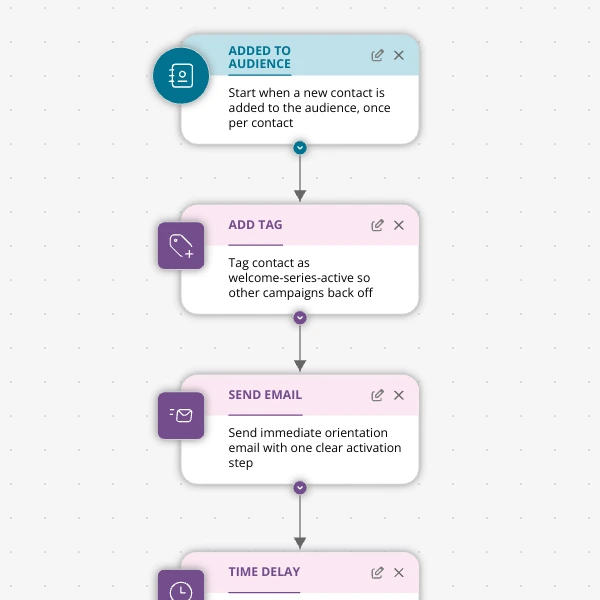
The Shopify app welcome series that turns installs into income
A step-by-step Shopify app welcome email journey for tools like CartSpark, showing how to turn new installs into activated, retained merchants using Spreeflo journeys, tags, and behavioral triggers so fewer trials quietly churn and more trials convert.
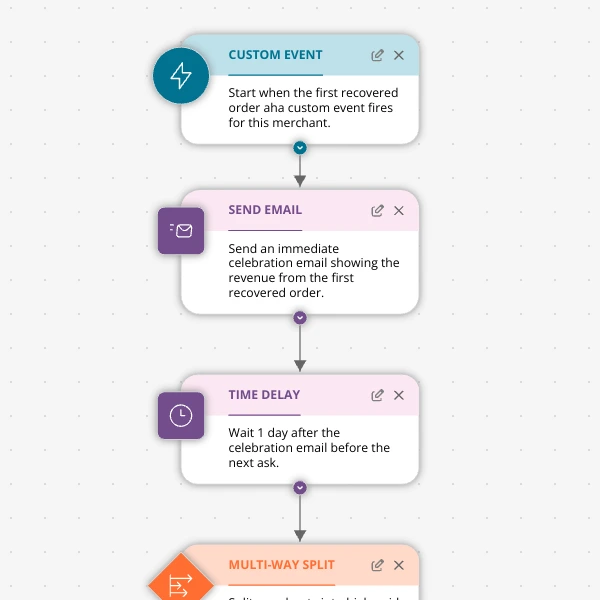
The Aha-Moment Playbook For Shopify Apps: Turn One Magic Action Into Months Of Revenue
A node-by-node playbook for Shopify and e‑commerce apps to center their lifecycle on one aha-moment custom event in Spreeflo, celebrate it, segment merchants by profile and engagement, and turn first recovered value into lasting revenue and retention.
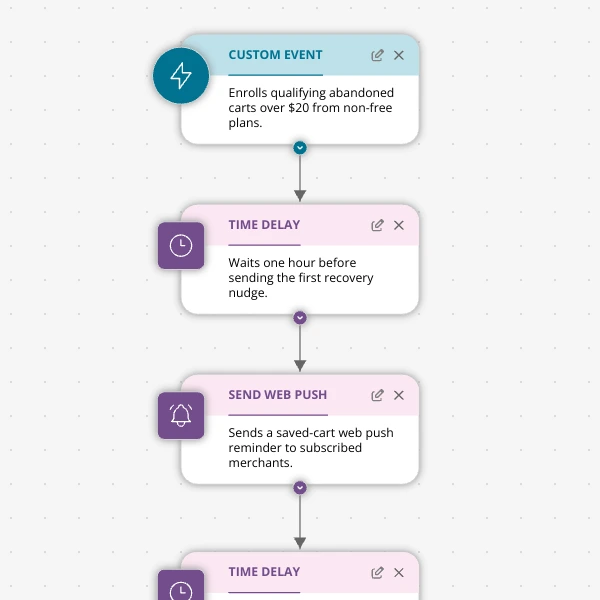
Stop Letting High‑Intent Carts Die: A 3‑Email Recovery Journey for Shopify Apps
A detailed, node-by-node walkthrough of a three-email (plus optional web push) cart-abandonment recovery journey for Shopify apps in Spreeflo, showing how to trigger events, branch on behavior, tag outcomes, and measure recovered carts and revenue.
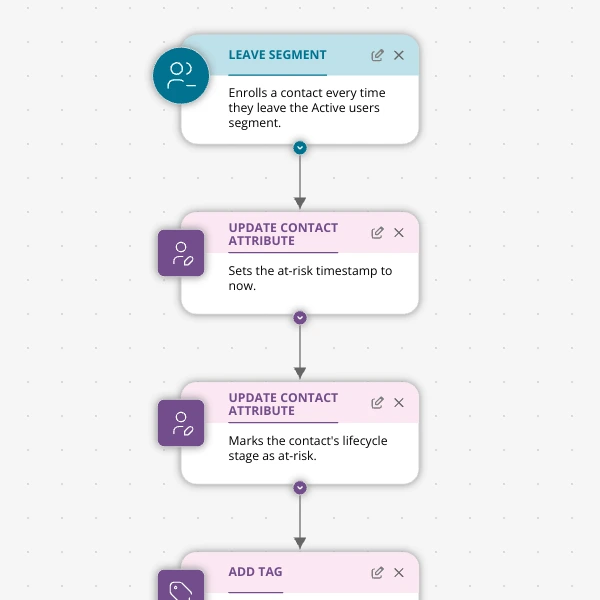
When Active Users Go Dark: A 4‑Touch Win‑Back Journey For Your Shopify App
A detailed, node-by-node Spreeflo journey for winning back previously active Shopify app users who stop engaging, using segment-based triggers, conditional logic, and a four-touch email plus internal alert sequence to recover usage and MRR.