Turn Quiet Power Users into Pipeline: A Self‑Serve to Sales Escalation Journey for SEO SaaS
A detailed Spreeflo journey for SEO SaaS teams to spot high-value self-serve accounts, auto-alert the right people, send founder-style upgrade invites, and convert quiet power users into expansion and enterprise pipeline without extra headcount.
Industry
Niche
Pattern
Loading sequence...
The accounts most likely to become your next $1k/month customers are rarely the ones filling out your "Talk to sales" form. They’re the teams quietly adding seats, inviting colleagues, and checking rankings every day without ever raising their hand.
This playbook is how you stop waiting and start escalating those accounts to sales at the right moment, automatically. The sequence at the top of this page is the whole journey, end to end.
Imagine RankPulse, a three‑person SEO SaaS doing $40k MRR. Most revenue is self‑serve: credit card, pick a plan, off you go. One agency customer steadily grows from 2 to 8 seats and from $89 to $399/month, then hits a tricky client transition, re-evaluates tools, and quietly churns. No one ever reached out, and no one noticed until Stripe’s churn report.
That’s the leak this journey fixes.
The growth leak hiding in self‑serve “success”
Self‑serve is great for acquisition, but it hides opportunity.
Your best SEO customers often look like this:
They add multiple seats over a few months.
They integrate Google Search Console and analytics.
They repeatedly generate content briefs or run technical audits.
They almost never talk to you.
By the time they consider “enterprise‑grade” tools, they’re comparing you to Ahrefs, SEMrush, and custom in‑house stacks. If you only hear about them when they hit your generic “Contact sales” page, you’ve already lost weeks or months where a well‑timed conversation could have locked them in.
The idea behind this journey is simple:
When an account’s profile and behavior cross your “ready for sales help” threshold, Spreeflo automatically:
Flags them as an expansion candidate.
Alerts the right human with context.
Sends a founder‑style email that feels one‑to‑one, not like a broad campaign.
Adapts based on how they respond.
You build it once, and it runs forever. That’s the kind of leverage founder‑led SaaS needs.
Decide what “ready for sales” means in your world
Before we touch the canvas, define your expansion profile. For an SEO SaaS, that’s usually a mix of seats, revenue, and usage:
Common triggers:
Seat count: e.g. account has 5+ active seats.
MRR: e.g. account MRR ≥ $200 or $300.
Plan type: on a “Team” or “Agency” plan but not yet “Enterprise.”
Usage: e.g. “checked rankings” at least 8 times in the last 30 days, or “generated_content_brief” 10+ times.
In Spreeflo, you’ll capture those as contact attributes and events:
account_seat_count(NUMBER)account_mrr(NUMBER)plan_type(TEXT)Key custom events like
keyword_checked,brief_generated,gsc_connected
The journey uses those fields in a Criteria Match trigger and later branching logic via the segment builder. This is how you move from “blast everyone about upgrades” to “speak uniquely to the accounts that are clearly growing.”
Feed Spreeflo the right profile data
This journey is only as smart as the data you send it. You don’t need anything exotic, but you do need to keep a few attributes up to date.
Pick your “contact of record”
Create the attributes in Spreeflo
Keep those attributes in sync
Track key product events
Typically this is the billing owner or main admin contact for the account. That’s the contact Spreeflo will email and the one that holds account‑level fields like account_seat_count.
Under your audience settings, add custom attributes:
account_seat_count(Number)account_mrr(Number)plan_type(Text)
You might also add things like primary_use_case or agency_size if you collect them during signup.
From your backend or billing system, call the Spreeflo API whenever seats or MRR change. Update account_seat_count and account_mrr on the billing contact.
From your app frontend, you can also call Spreeflo.identify("user@email.com", { plan_type: "Team" }) when plan changes happen in the browser.
Use either the JavaScript SDK in your app or your server posting to the events endpoint when things like brief_generated or gsc_connected happen. We’ll use those later for more advanced rules, but the core journey only needs seats and MRR.
Once those fields are flowing into Spreeflo, you’re ready to build the automation.
Build the escalation journey, node by node
Open campaign and journey automation and create a new Journey. Then mirror the sequence at the top of this page.
1. Trigger on profile state: Criteria Match
First node: Criteria Match trigger.
Configure the condition using the segment builder:
Contact Attributes:
account_seat_countgreater than or equal to 5 ORaccount_mrrgreater than or equal to 200AND Contact Attributes:
plan_typeis notEnterpriseAND Email Subscription Status: is
Subscribed
Set Re-enrollment to off for this journey. You only need to run this escalation once per account; after that, either they upgrade or you treat them as “touched.”
Why it matters: this trigger is pure profile state. It fires the moment a contact crosses your seat or revenue threshold, without waiting on an explicit event like “clicked upgrade.” That’s the whole point: you discover expansion potential before they knock.
2. Tag for visibility: Add Tag
Next node: Add Tag action.
Tag name: something like
expansion_candidate
This does two things:
Creates a permanent breadcrumb you can filter by later.
Lets you build reports or segments around “all accounts that ever hit our expansion threshold.”
If you later want to run a one‑off campaign to everyone tagged expansion_candidate, you already have the label.
If you don’t want this tag to trigger other journeys, leave the _Force Tag Trigger_ option off in the Add Tag node.
3. Route by size: Multi‑way Split and internal alerts
Not all expansion opportunities are equal. A 5‑seat account might go to a general inbox; a 20‑seat agency might go straight to the founder.
Add a Multi‑way Split process node after the tag:
Configure two branches using the segment builder:
Branch “Mid‑tier”:
account_seat_countgreater than or equal to 5 ANDaccount_seat_countless than 10Branch “High‑tier”:
account_seat_countgreater than or equal to 10Else branch: Catches anything weird (e.g. missing seat count). You can send these to a generic path or simply tag and exit.
On each branch, add a Send Internal Email action:
Mid‑tier branch:
Template: “Expansion lead: mid‑tier account hit 5+ seats”
Recipients: your shared sales or success inbox
Include key fields in the body: seat count, MRR, plan, last login, and a suggested next step.
High‑tier branch:
Template: “High‑value expansion lead: 10+ seats”
Recipients: founder or senior AE
Include similar fields, plus recommended outreach script.
Then add a Merge node after both internal emails and have each branch flow into it. This keeps the canvas tidy and lets every account continue down the same path after the human alert.
Why this structure: the split means the right person gets pinged with the right framing. The merge keeps the rest of the journey identical regardless of size.
4. Give self‑serve a chance to act: Wait Condition
Some accounts will hit your threshold and immediately click the in‑app “upgrade” button or book a call via your pricing page. You don’t want to blast them with an automated upgrade email five minutes after they’ve already scheduled time with you.
After the Merge, add a Wait Condition node:
Condition: Custom Event
demo_bookedhas triggered at least 1 time over all time OR Custom Eventplan_upgradedhas triggered at least 1 time over all timeTimeout: 1 day
This tells Spreeflo: “Pause for up to 24 hours while we see if they either book a demo or upgrade themselves. As soon as either is true, move on.”
You’ll feed those events into Spreeflo from your scheduling tool or billing system via the Spreeflo API so they’re available in the segment builder.
5. Skip automation for those already in motion: If/Else
Immediately after the Wait Condition, drop an If/Else node using the same condition:
If branch: has booked a demo or upgraded.
Else branch: has not.
For the If branch (they’ve already acted):
Add Tag:
expansion_in_progressOptionally send another Send Internal Email saying “This account crossed the threshold and has already booked — here’s the context.”
Then end the journey on that path. No automated sales email needed; the human process takes over.
For the Else branch, we’ll build the outbound nudge.
6. Send a founder‑style upgrade invite: Send Email
On the Else branch, add a Send Email action. This is the first external email in the journey.
Use Spreeflo’s email builder to create something that feels closer to a personalized note than a campaign:
Subject ideas:
“Quick idea for your SEO team at {{company_name}}”
“You’re using RankPulse like our agency customers do”
Body ideas:
Acknowledge what you know: seat count, usage patterns, plan type.
Call out the jobs they’re clearly doing (e.g. “I can see you’re running daily checks on 200+ keywords for multiple projects”).
Offer something concrete:
- A short call to walk through agency‑specific workflows.
- A suggestion to switch to annual with a discount.
- A feature they don’t yet use that solves a real pain (shared templates, white‑label reports, etc.).
Because Spreeflo captures detail on every contact, you can safely personalize this email to the account without guessing. If you’re on the Professional plan, you can even use AI‑powered personalization in the text to tune copy to their use case.
Keep the Send Email node’s “send only once” behavior on, so a contact can’t accidentally get this invite multiple times.
7. Watch how they respond: Time Delay and Check Email Activity
Not everyone replies immediately. You want to react differently to:
People who click your scheduling link.
People who open but never click.
People who ignore the email entirely.
After the upgrade invite email, add a Time Delay:
Wait 3 days.
Then add a Check Email Activity process node, targeting the specific invite email:
Configure three branches:
“Clicked”: Condition: Link Clicked.
“Opened”: Condition: Opened but did not click.
“Unopened”: Condition: Not opened.
Else: Catches anything that doesn’t fit cleanly; you can treat this the same as “Unopened” or simply tag and exit.
Now build each branch.
Clicked branch: treat as hot
These are your hottest signals. They saw your invite and interacted.
On this branch:
Add Tag:
expansion_high_intent.Send Internal Email: “High‑intent expansion lead — clicked upgrade invite” with a direct link to the contact and notes on what they clicked.
You can end the journey here. Your human follow‑up should do the rest.
Opened branch: gentle follow‑up
They read your email but didn’t take the next step. A short follow‑up is usually welcome.
On the “Opened” branch:
Add a Time Delay of 2 more days.
Then add another Send Email:
Subject: keep it simple, e.g. “Worth a quick look?”
Body: reference the previous email, offer one specific benefit of talking, and make the CTA low‑friction (e.g. a Calendly link or “reply with a time that works”).
Because there’s a Time Delay, you respect pacing rules and avoid back‑to‑back emails.
You can optionally add a tag like expansion_nurtured afterward and then end this path.
Unopened branch: try a different angle
If they haven’t opened at all, treat this as a simple A/B test on subject lines and framing.
On the “Unopened” branch:
Time Delay: 2 days.
Send Email: new subject line and shorter copy, perhaps with a clearer value hook:
“Saving your team 3–5 hours a week on rank checks”
“A quick way to standardize briefs across your clients”
Tag these contacts with something like expansion_retried and exit.
You can refine these two follow‑up emails over time by watching open and reply rates inside your email analytics.
What to measure after launch
This journey is about turning silent growth into visible pipeline. You’ll see that in a few ways:
Expansion‑to‑enterprise revenue Track how many
expansion_candidateaccounts later move to higher plans. You can reflect upgrades back into Spreeflo via the API and then compare tagged vs non‑tagged cohorts in your own reporting.Time‑to‑expansion Look at the gap between when an account hits the threshold (when the journey tags them) and when they upgrade or book a demo. The goal is to shorten that window by getting a human in earlier.
Reply and booking rates on the invite emails Because the journey isolates a very specific audience, these emails should outperform your generic lifecycle campaigns. Use that feedback to keep tuning subject lines and offers.
Sales and success feedback Ask your team which internal alerts were actually useful. You can tweak the Multi‑way Split thresholds, who gets notified, and what context you include without touching the core trigger.
Most importantly, notice how little ongoing effort this takes once it’s live. You invest the thinking up front, then the system keeps working in the background.
Adapting the pattern to your SEO SaaS
The exact thresholds and signals will vary:
A content‑brief SaaS might trigger on “briefs per week” instead of seats.
A technical audit tool might care more about number of projects and audit frequency.
A rank tracker might use total keywords tracked or connected domains.
The shape of the journey stays the same:
Define a clear expansion profile from your own data.
Keep that profile in Spreeflo as contact attributes and events.
Use a Criteria Match trigger to catch accounts crossing that line.
Branch to the right humans with targeted internal emails.
Give self‑serve a chance to act, then send a personalized founder‑style invite.
React smartly to how they engage with that invite.
You’re capturing enough detail on each customer to speak to them as a specific account, not a line in a CSV. And you’re doing it in a way that doesn’t require hiring three more people; you build the journey once and it amplifies everyone you already have.
If you’re already tracking usage and revenue in your app, you have what you need. Wire those signals into Spreeflo, open the journey editor, and let this pattern quietly turn your best self‑serve users into the kind of customers your future self will thank you for.
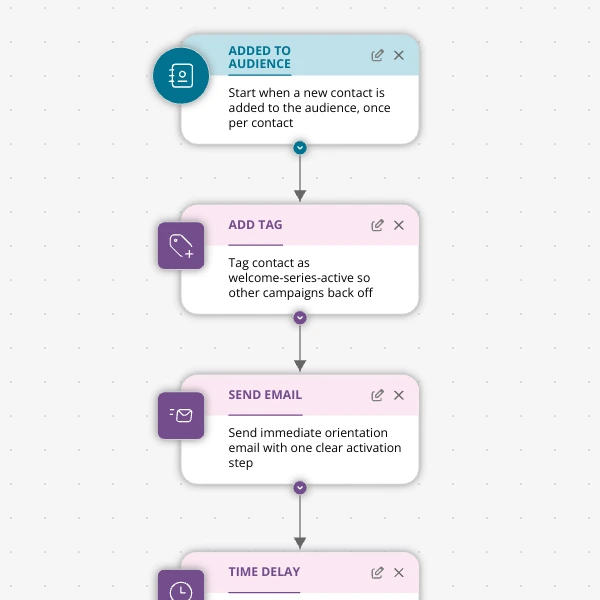
The Shopify app welcome series that turns installs into income
A step-by-step Shopify app welcome email journey for tools like CartSpark, showing how to turn new installs into activated, retained merchants using Spreeflo journeys, tags, and behavioral triggers so fewer trials quietly churn and more trials convert.
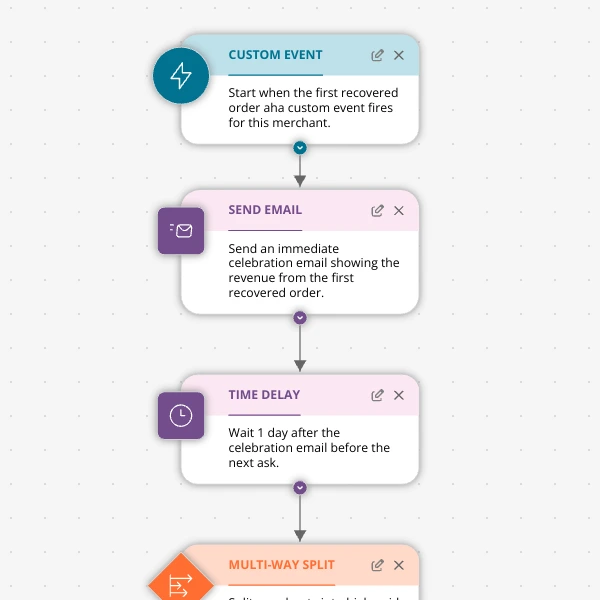
The Aha-Moment Playbook For Shopify Apps: Turn One Magic Action Into Months Of Revenue
A node-by-node playbook for Shopify and e‑commerce apps to center their lifecycle on one aha-moment custom event in Spreeflo, celebrate it, segment merchants by profile and engagement, and turn first recovered value into lasting revenue and retention.
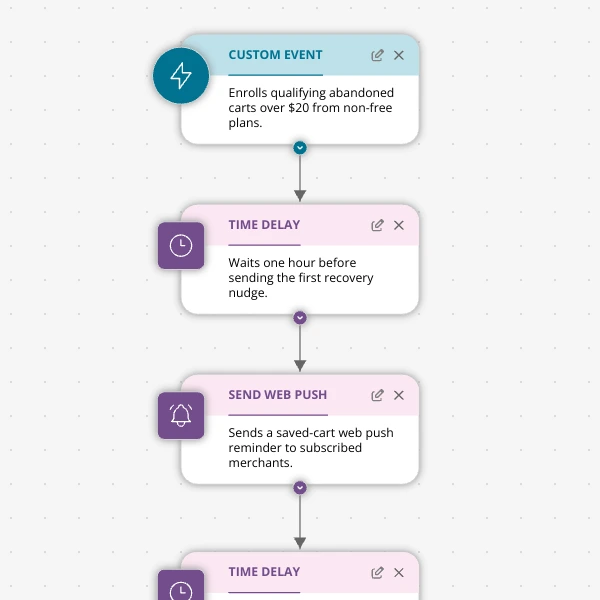
Stop Letting High‑Intent Carts Die: A 3‑Email Recovery Journey for Shopify Apps
A detailed, node-by-node walkthrough of a three-email (plus optional web push) cart-abandonment recovery journey for Shopify apps in Spreeflo, showing how to trigger events, branch on behavior, tag outcomes, and measure recovered carts and revenue.
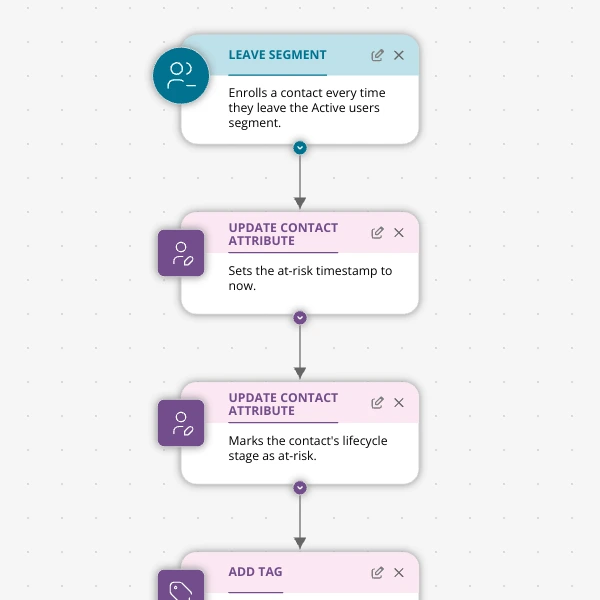
When Active Users Go Dark: A 4‑Touch Win‑Back Journey For Your Shopify App
A detailed, node-by-node Spreeflo journey for winning back previously active Shopify app users who stop engaging, using segment-based triggers, conditional logic, and a four-touch email plus internal alert sequence to recover usage and MRR.