Turn SEO Webinars into a Trial Machine: The Spreeflo Journey from Registration to Replay
This playbook walks SEO SaaS teams through building a full Spreeflo journey around webinars, from registration and reminders to segmented replay paths and post-event nurture, turning more attendees and no-shows into product trials.
Industry
Niche
Pattern
Loading sequence...
The first time RankPulse ran a “How to clean up local SERP reports” webinar, they got 840 registrations, 290 live attendees… and 47 trials. The rest of that list went cold within a week.
The problem wasn’t the topic or the deck. It was everything that happened between “you’re registered” and “here’s the replay, go do something about it.” The sequence at the top of this page is the whole journey, end to end, for fixing that.
In this playbook, we’ll build that journey in Spreeflo for an SEO SaaS: confirmation, staggered reminders, a day‑of “we’re live” email, and then two replay paths split by who actually showed up. You’ll see exactly which nodes to use, how to configure them, and how to adapt the pattern for your own webinars.
Why most SEO webinars leave money on the table
Webinars are perfect for SEO tools. You can show live audits, walk through rank tracking workflows, and answer questions that only practitioners ask.
But most flows still look like this:
Generic “you’re in” email
Maybe a calendar link
One reminder the morning of
A single replay email a few days later
Everyone gets the same thing: the agency that stayed for 55 minutes and asked three questions, and the in‑house marketer who registered then forgot.
That’s two kinds of leakage:
You’re not using behavioral detail (registered, attended, watched replay, started trial) to speak to each person differently.
You’re not nurturing engagement after the event, so a lot of that hard‑won attention decays within days.
This journey fixes both, using Spreeflo’s Custom Event trigger, branching nodes, and a short post‑webinar nurture. The rest of this article walks through the nodes in the visual sequence and why they’re wired in this order.
First, wire your webinar tool into Spreeflo
Before you touch the canvas, you need clean events.
For most SEO SaaS teams, webinars run on tools like Zoom, Demio, or Livestorm. Those are external platforms you don’t control, which is exactly when you should treat webinar activity as server‑side events via the Spreeflo API, not as a form or SDK event.
Set up three events:
webinar_registerwebinar_attendedstarted_trial(or whatever your primary conversion is)
Each payload should at least include:
Email (to map to a contact)
webinar_id(or slug)Maybe
webinar_titleandsegment(“agencies”, “in‑house”, etc.)
On the product side, make sure your app is already tracking core behaviors into Spreeflo (trial started, plan upgraded, visited pricing). When it’s browser‑side, that’s through the Spreeflo SDK; when it’s server‑side (billing webhooks, for example), that’s through the events API.
Once those events are flowing, you can build the journey using a Custom Event trigger and Spreeflo’s segment builder to branch on them.
Step 1: Trigger the journey on webinar_register
On the canvas, start with a journey (not a campaign). We want this to run every time someone registers.
Node: Custom Event trigger
Event name: webinar_register
Property conditions: filter on webinar_id for the specific session
Re‑enrollment: off for a one‑off webinar, on if you plan to reuse this journey across recurring sessions
Why this node
It fires the moment a registration hits Spreeflo via the API.
Property conditions let you reuse the same journey design for multiple webinars by scoping each journey to a different
webinar_id.
If you host registration on your own landing page instead of a third‑party tool, you can swap this for a Form Submission trigger tied to a Spreeflo form. The rest of the flow stays the same.
Immediately after the trigger, add an Add Tag action:
Node: Add Tag
Tags: webinar-registered, plus a specific tag like webinar-technical-seo-may
This tag gives you quick list access later and doubles as a safety rail: if something goes wrong with your webinar tool’s integration, you still have all registrants labeled inside your audience view.
Step 2: Send a registration confirmation that sets expectations
Next, add a Send Email node for the confirmation.
Node: Send Email
Content: build in Spreeflo’s email builder
Send only once: leave on (default)
What goes in this email:
A clear “You’re registered” headline
Date, time, and timezone spelled out
A short bullet list of what they’ll see (tie it to rank tracking, audits, briefs, etc.)
Calendar link (from your webinar tool)
A line on who it’s for (“agency SEOs running >20 clients” vs “in‑house marketers for SaaS”)
This is your first chance to show relevance. Pull in contact attributes when you can: if you store company type or role, reference it so an agency gets different copy from an ecommerce brand.
Right after, insert a Time Delay node:
Node: Time Delay
Delay: 2 days (or fewer if your webinar is close)
This delay creates breathing room before the first reminder and keeps you inside the “no back‑to‑back emails” rule.
Step 3: Build the reminder ladder without spamming
Reminders are where show‑up rate is won or lost.
The pattern in the sequence at the top of the page uses three touches after the confirmation:
First reminder a couple of days out
Second reminder the day before
“We’re live in an hour” email
You can mirror that with a simple chain:
After the first Time Delay, add Send Email – “First reminder”.
Add a Time Delay of 1 day.
Add another Send Email – “Tomorrow’s the day”.
Add a Time Delay of 1 hour.
Add the “We’re going live” Send Email.
Every Send Email is separated by a Time Delay, so no one gets hit twice in a row on the same path.
Configuration notes:
Use “send only once” on each reminder.
Keep copy short. The closer you get to start time, the more you rely on subject line and first sentence to earn attention.
Subject lines should be concrete: “Tomorrow: Live teardown of your local SERPs” beats “Reminder: Our upcoming webinar”.
Because Time Delays are relative to registration, last‑minute signups will see a compressed version of this ladder. In practice, that’s acceptable for most SaaS teams; late registrants are usually grateful for even a single reminder.
If you run tightly scheduled launches, you can always complement this with a one‑off broadcast the hour you go live.
Step 4: Wait for attendance and split attendees from no-shows
After the “we’re live” email, you want to pause the journey until attendance data arrives from your webinar tool.
First, add a Wait Condition node:
Node: Wait Condition
Condition: Custom Event webinar_attended triggered at least 1 time in the last 1 day (using the Custom Events filter in the segment builder)
Timeout: 1 day
This means:
If the contact’s
webinar_attendedevent arrives within a day, they move on immediately.If it doesn’t, they move on when the 24‑hour timeout expires.
Right after the Wait Condition, add an If/Else process:
Node: If/Else
Condition: Custom Event webinar_attended triggered at least 1 time over all time
Branches:
Yes path: “Attended”
Else path: “Did not attend”
Why use both Wait Condition and If/Else?
Wait Condition gives the system time to receive the event.
If/Else makes the split explicit and keeps the logic easy to read when you revisit the journey in three months.
This is the key moment where you stop treating everyone the same. The rest of the flow is two different replay sequences off this fork.
Step 5: Attendee replay and high-intent nurture
On the “Attended” branch, drop in a Send Email right away:
Node: Send Email
Content: “Replay + resources”
Key elements:
Thank them specifically for showing up live.
Link the replay near the top.
Summarize 3–5 takeaways tied to your product (for an SEO SaaS, that might be “how often to refresh content briefs” or “which rank drops are actually urgent”).
Offer related resources: templates, docs, a comparison guide.
Because they already engaged, your call to action can be stronger:
Start a trial with a bonus (extended trial, extra seats).
Book a workflow session if you sell higher plans to agencies.
Then add a Time Delay of 2 days and an If/Else node that checks for your core conversion event:
Node: If/Else
Condition: Custom Event started_trial triggered at least 1 time in the last 2 days
Branches:
Yes (started trial): light‑touch follow‑up
Else (did not start trial): stronger nudge
On the “Yes” branch:
Add a short Send Email welcoming them as a trial user and connecting what they saw in the webinar to their next step in the app.
Optionally, add Add Tag with
webinar-convertedso you can later analyze webinar‑sourced conversions.
On the “Else” branch:
Add a Send Email that addresses the most common friction you see (e.g., “Don’t have client data ready yet? Here’s how to trial RankPulse with demo sites”).
Then add a Time Delay and either merge them into your general onboarding journey or add one more education‑heavy email.
If you want both paths to converge back into a single nurture, end each branch with a Merge node and continue the flow from there.
This whole side of the split is about brand message 1: using detailed behavioral data (attendance, trial start) so you can speak uniquely to each customer instead of blasting generic “check out the replay” emails.
Step 6: No-show replay and soft recovery
Now for everyone who registered and didn’t make it live.
On the “Did not attend” branch from your If/Else, send a softer replay email:
Node: Send Email
Angle: “Sorry we missed you – here’s the replay”
Differences from the attendee version:
Acknowledge they couldn’t make it.
Emphasize what they’ll get in 15–20 minutes of watching, not the full hour.
CTA is lighter: “Watch the 12‑minute segment on client reporting” rather than “start a trial” front and center.
Add a Time Delay of 2 days, then a Check Email Activity node:
Node: Check Email Activity
Marketing email: the no‑show replay email
Activities:
Branch A: “Link Clicked”
Branch B: Else
This lets you distinguish:
No‑shows who were interested enough to click the replay.
No‑shows who ignored it.
On the “Link Clicked” branch, you can mostly reuse the attendee nurture:
Add a Merge that connects to the same post‑replay nurture the attendee branch uses.
Or send a short “Glad you caught the replay” Send Email with one tailored CTA, then merge.
On the Else branch (“did not click”), avoid hammering them with more of the same:
Add a Send Email that reframes the offer, for example “Here’s the workflow we showed, minus the webinar” with a written guide.
Then add a Time Delay and an Add Tag like
webinar-no-engageso you can suppress them from aggressive follow‑up without dropping them from your general newsletter.
This is where brand message 3 shows up clearly: most teams stop after a single replay and walk away from people who raised their hands. Here, you get a second chance with no‑shows and a tailored path for those who still engage.
Measuring registration, attendance, replay, and conversion
Once the journey is live, you can track the core metrics from the pattern description:
Registration rate: use the count of
webinar_registerevents divided by your promo audience size.Attendance rate: use a segment where Custom Event
webinar_attendedhas triggered at least once, divided by registrants.Replay views: filter by Email Activity “clicked” for each replay email.
Post‑event conversion: segment contacts who triggered
started_trial(or your equivalent) within X days of the webinar and have thewebinar-registeredtag.
Spreeflo’s campaign and journey view will show node‑level performance. Combined with the segment builder, you can answer questions like:
Do agencies attend more than in‑house teams?
Do no‑shows who click the replay convert similarly to live attendees?
Which webinar topics send the most people into high‑intent behaviors (pricing visits, feature usage)?
Those insights feed back into your content calendar and your product roadmap.
Adapting this pattern for your own SEO SaaS
A few variations you might want:
One journey per webinar vs one reusable journey filtered by
webinar_id. Separate journeys keep reporting simple; reusable ones are easier to maintain.Extra segmentation on the Custom Event trigger, for example running a separate journey when
webinar_segmentis “agencies”.Parallel internal alerts using Send Internal Email any time someone both attends and hits a “hot” event (visited pricing, requested a demo).
However you adapt it, keep the core structure:
Trigger on registration
Confirm early and set expectations
Send spaced reminders
Branch attendees vs no‑shows based on real events
Send replay and CTA paths that match that behavior
That structure is what turns webinars from one‑off marketing stunts into a repeatable trial engine.
For a small SEO SaaS team, this is exactly the kind of work where automation earns its retainer line item. You build the journey once, connect a few events, and every future webinar benefits. Instead of wondering where those 840 registrants went, you’re steadily moving more of them into trials and long‑term revenue, with Spreeflo quietly doing the follow‑up you don’t have hours for.
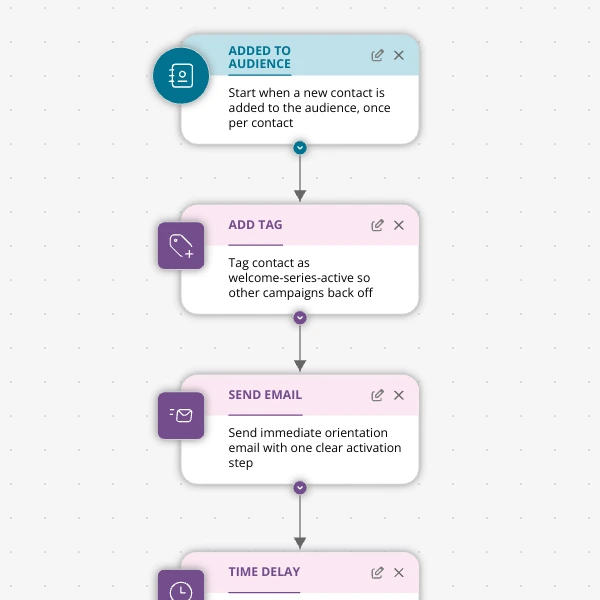
The Shopify app welcome series that turns installs into income
A step-by-step Shopify app welcome email journey for tools like CartSpark, showing how to turn new installs into activated, retained merchants using Spreeflo journeys, tags, and behavioral triggers so fewer trials quietly churn and more trials convert.
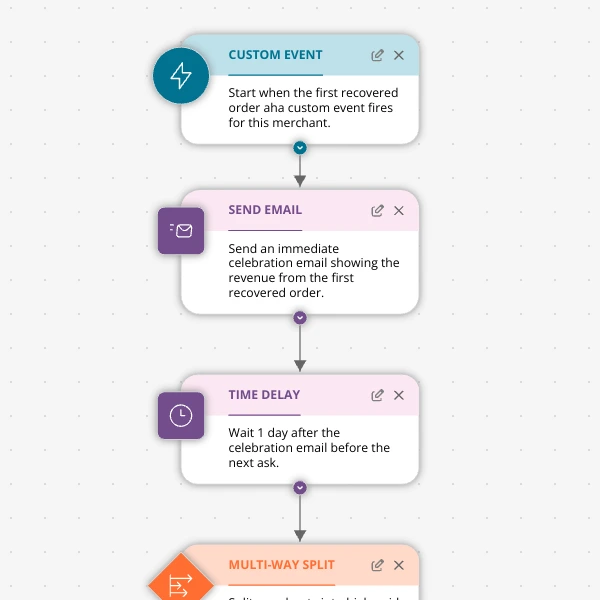
The Aha-Moment Playbook For Shopify Apps: Turn One Magic Action Into Months Of Revenue
A node-by-node playbook for Shopify and e‑commerce apps to center their lifecycle on one aha-moment custom event in Spreeflo, celebrate it, segment merchants by profile and engagement, and turn first recovered value into lasting revenue and retention.
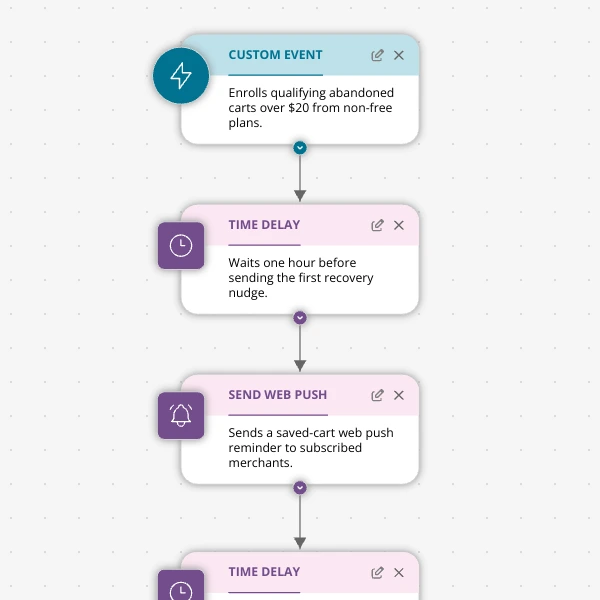
Stop Letting High‑Intent Carts Die: A 3‑Email Recovery Journey for Shopify Apps
A detailed, node-by-node walkthrough of a three-email (plus optional web push) cart-abandonment recovery journey for Shopify apps in Spreeflo, showing how to trigger events, branch on behavior, tag outcomes, and measure recovered carts and revenue.
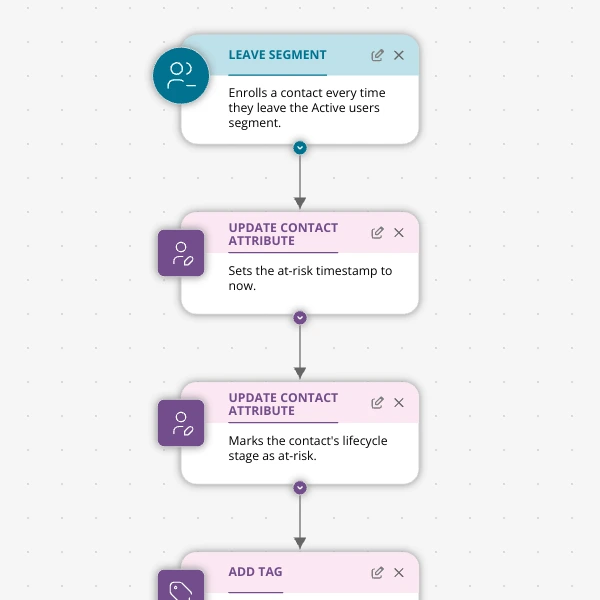
When Active Users Go Dark: A 4‑Touch Win‑Back Journey For Your Shopify App
A detailed, node-by-node Spreeflo journey for winning back previously active Shopify app users who stop engaging, using segment-based triggers, conditional logic, and a four-touch email plus internal alert sequence to recover usage and MRR.