Stop Treating Every Pricing Visit Like a Sales Signal
A detailed Spreeflo journey for SaaS teams that treats repeat pricing-page visits as the real sales signal, routing only high-intent visitors to sales with structured events, internal alerts, tags, and optional CRM or webhook integrations.
Industry
Niche
Pattern
Loading sequence...
Someone hits your pricing page and your inbox lights up with “hot lead” alerts. Half the time it’s a blog reader who’s just curious. The other half, it’s a bot, a competitor, or a free user glancing at the numbers.
Meanwhile, the people who actually come back to pricing three times in a week get the same treatment as everyone else—or worse, no treatment at all.
The sequence at the top of this page is the whole journey, end to end. It flips that pattern: one pricing-page view is noise; the second visit within seven days is a genuine sales signal that triggers a tight handoff.
Let’s walk through how an SEO SaaS like “RankPulse” or “BrieflySEO” would use this in Spreeflo to feed sales only the visits that matter.
Why “viewed pricing page” is killing your focus
If you’ve ever wired “/pricing pageview → Slack alert,” you’ve probably watched your team mute the channel within a week.
For an SEO SaaS, lots of people hit pricing once:
Someone binge-reading your blog opens pricing just to sanity‑check cost.
A trial user clicks pricing mid‑setup without real purchase intent.
Agencies investigating tools for later shortlist you along with four others.
On its own, that first touch tells you almost nothing.
The pattern that does correlate with revenue is repeat behavior:
The founder who comes back to pricing after running a technical audit.
An agency owner revisiting while they’re pricing out a proposal.
A trial user checking pricing after they’ve added real projects and keywords.
That second (or third) look inside a short window is intent.
This journey bakes that logic into your marketing system so you don’t have to eyeball analytics or rely on gut feel. It’s a classic example of using behavior detail to speak differently to each customer—and of how a small founder‑led team can get “sales ops” quality outcomes without extra headcount.
What this journey actually does
Before we go node by node, here’s the journey in one sentence:
When a known contact views your pricing page at least twice in seven days, and they’re not already a paying customer or in an active sales conversation, Spreeflo sends a rich internal email (and optionally a webhook) so someone can reach out like a human, not a bot.
Under the hood, this is a Journey (not a Campaign). If you’re new to Spreeflo, this is exactly the kind of always‑on flow described on our campaigns and journeys page.
Now let’s break down each step and why it’s configured that way.
Step 1: Capture pricing views as structured events
Everything hinges on one reliable behavior signal: “this person saw the pricing page.”
There are two clean ways to capture that with Spreeflo’s web tracking:
Auto‑tracked page views via the SDK
A dedicated custom event
Install the Spreeflo SDK on your marketing site, as outlined in the web tracking and analytics guide.
Make sure you call
Spreeflo.identify("email@company.com", {...})anywhere a visitor becomes known (newsletter signup, trial start, in‑app). That’s how visits get stitched to a contact.Pricing visits then show up automatically under the Page Visited filters in the Segment Builder.
On page load of
/pricing, your frontend fires a custom event likepricing_page_viewedwithSpreeflo.track("pricing_page_viewed", { url: "/pricing" }).On server‑side contexts (if you truly need them), you’d POST that event into the Spreeflo API instead of calling the JS SDK.
For this playbook, you can use either. The journey logic is the same; the only difference is which filter you pick later in the Segment Builder.
The key is: you are not just counting “sessions” in Google Analytics. You’re tying each pricing view to a specific contact in your audience. That’s what lets you differentiate between:
A trial user who has been back to pricing 3 times this week.
A dormant lead from last year who just re‑appeared.
A blog subscriber who clicked pricing once and bounced.
That detail is your edge as a small team.
Step 2: Turn “second visit in seven days” into a trigger
Now we’ll define when the journey should start.
In Spreeflo, this journey uses a Criteria Match trigger, because that’s what lets you trigger on frequency of a web event within a time window (the second visit in seven days), not just “event happened once.”
Node: Criteria Match trigger
Configuration:
Criteria: built with the Segment Builder.
Condition group:
- EITHER:
- Custom Events →pricing_page_viewed→ “triggered at least 2 times in the last 7 days”
- OR (if you prefer page views over custom events):
- Page Visited → URL contains/pricing→ “at least 2 times in the last 7 days”Plus two safety conditions:
- Contact Tags → “contact is not tagged withpricing_revisit_alerted” (prevents repeat alerts for the same person)
- Contact Attributes → “Marketing status is Marketing” (you’re not alerting sales about unsubscribed or non‑marketing contacts)
Set Re-enrollment to off on this trigger.
Why Criteria Match instead of the plain Custom Event trigger?
Because the Custom Event trigger reacts every time an event fires, and only filters on event properties. It doesn’t understand “second time in seven days.” The Criteria Match trigger sits on top of your events and web activity and only fires when a contact newly crosses the threshold you defined—in this case, from one pricing view to two (or more) within the last week.
That’s exactly what we want:
First pricing view in the last seven days → no enrollment.
Second pricing view in that window → journey starts.
Third/fourth pricing view in the same week → no new enrollment, because they already tripped the threshold and got tagged.
You’re encoding your definition of intent directly into the trigger instead of dumping all the noise into a Slack channel and expecting humans to filter it.
Step 3: Route out the noise before it hits sales
The trigger tells us: “this contact is looking at pricing seriously.” Now we sanity‑check whether that should become a sales task.
There are two high‑level questions:
Are they already a paying customer?
Has someone on the team already picked them up?
You don’t want to ping sales because an existing agency customer checked their invoice, or because someone already has a deal open with them.
This is where an If/Else process node comes in.
Node: If/Else
Condition (via Segment Builder):
Group condition: AND
- Contact Tags → “contact is tagged withcustomer” (or whatever tag you apply at signup)
- OR Segment Membership → “is member of segmentActive customers”Plus:
- Contact Tags → “contact is tagged withsales_in_progress” (optional, if you tag leads once someone is talking to them)
Path A (Then branch): “Already customer or in sales”
Path B (Else branch): “Qualified for new outreach”
What happens down each branch:
Then branch: end the flow, or optionally Add Tag like pricing_revisited_customer for later analysis. The point is: no new alert.
Else branch: this is where the internal notification and CRM integration live.
By centralizing this logic in Spreeflo, you encode very human rules:
“Don’t send me alerts for people I already own.”
“Don’t ping me about existing customers unless they show churn behavior.”
You’ve taken two of the sales team’s biggest complaints—duplicate alerts and irrelevant alerts—and removed them with one If/Else node.
Step 4: Send the right internal alert (and log that it happened)
Once a contact makes it through the Else branch, they are:
Known and marketable.
Not yet a paying customer (or at least not tagged as one).
Not already in an active sales conversation.
Still interested enough to revisit pricing twice in a week.
That’s your high‑intent segment.
Now we do three things in sequence:
Send an internal email with context.
Stamp the contact so we know this alert fired.
Optionally fan out to your CRM or Slack.
4.1 Send Internal Email
Node: Send Internal Email
Configuration:
Recipient: your sales inbox, founder, or whoever handles demos.
Template: built once in Spreeflo’s email builder.
“Send only once”: ON (you don’t need the same alert twice).
Make the internal email extremely actionable. For example:
Subject: “Pricing re-visit: {{contact.company}} viewed pricing 2+ times this week”
Body:
- Who they are (name, email, company, plan/trial status).
- What they’ve done recently (trial started date, number of projects/keywords).
- A direct link to their contact profile in Spreeflo.
- A short checklist: “Reach out within 24h; mention their current keyword volume,” etc.
Spreeflo lets you personalize this with contact attributes so the email reads like an SDR’s quick research pass, not a generic notification.
4.2 Tag for deduplication and reporting
Next node on the same path: Add Tag
Configuration:
Tags:
pricing_revisit_alerted, maybe alsohigh_intent_pricing.
You can read more about this pattern in our getting started with tags guide, but the idea is simple:
This tag prevents the Criteria Match trigger from firing again for the same contact.
It also becomes an easy filter later:
- “Show me all contacts where tag containspricing_revisit_alertedAND Email Activity shows a reply from sales.”
4.3 (Optional) Log a timestamp
If you want to get more analytical, add an Update Contact Attribute node right after the tag:
Attribute: a custom TIMESTAMP attribute like
pricing_alerted_at.Update type: Set to now.
This writes the exact time the alert fired. It’s more precise than “at least twice in the last seven days” and makes later analysis simple:
Days between
pricing_alerted_atanddemo_booked_at.Deals created within X days of alert.
Because “set to now” is the one dynamic timestamp option, it stays within how Update Contact Attribute is designed to work.
4.4 (Optional) Create a CRM task via Webhook
If you’re running a proper CRM (HubSpot, Pipedrive, Close, etc.), finish the path with a Webhook node:
Method: POST
URL: your integration endpoint (could be a small service or a no‑code tool that talks to your CRM).
Payload: key fields like email, name, company, and the
pricing_alerted_attimestamp.
That way, every alert both hits your inbox and quietly opens or updates a deal in the background.
How to measure “revisit-to-meeting” and pipeline influence
The pattern’s suggested metrics are:
Revisit‑to‑meeting rate.
Pipeline influence per alert.
Here’s how to get those without spreadsheet acrobatics.
Revisit-to-meeting rate
This is simply:
number of contacts who both:
have tag
pricing_revisit_alerted, andhave a meeting booked / demo shown
divided by:
total contacts with tag
pricing_revisit_alerted.
Where does “meeting booked” come from?
If you use a “request demo” Spreeflo form, submissions can drive a Form Submission trigger and apply a
demo_bookedtag automatically.If your CRM is the source of truth, your Webhook handler can call the Spreeflo API to apply a
demo_bookedtag when a meeting is scheduled.
Once the tags are there, a simple segment in the Segment Builder tells you:
“Tag contains
pricing_revisit_alerted.”“Tag contains
demo_booked.”
The ratio is your revisit‑to‑meeting rate. It’s the number that tells you whether this alert is a real signal or a false positive.
Pipeline influence
Two simple cuts give you a strong read:
Deals that originated from pricing‑revisit alerts
Deals where pricing‑revisit happened mid‑funnel
Deals that originated from pricing‑revisit alerts
Filter in your CRM (by the webhook flag or tag) to see:
How many opportunities had
pricing_revisit_alertedwhen they were created.The total pipeline and closed‑won revenue from them.
Deals where pricing‑revisit happened mid‑funnel
For existing leads, you can see which ones hit pricing twice mid‑evaluation by looking at:
Contacts with both
sales_in_progressandpricing_revisit_alerted.How many of those closed compared with leads that never revisited pricing.
Even rough numbers here are valuable. If you see that pricing‑revisit alerts convert to meetings at, say, 35% and close at 20%, while your generic inbound does half that, you’ve just found a high‑signal subset worth real attention.
Why this matters more for a small SEO SaaS than a big sales team
Large SaaS companies can afford to waste SDR time on noisy alerts. You probably cannot.
This pattern does three important things for a founder‑led SEO SaaS:
It captures pricing behavior as structured data tied to real contacts, so you can speak differently to the trial user peeking at pricing once versus the agency owner who’s circled back three times.
It turns that data into a clean, opinionated rule—“second pricing visit in seven days, not already in pipeline”—that only fires when the likelihood of a useful conversation is high.
It encodes that rule in an always‑on journey so the system watches every visit, all the time, even when you’re heads‑down shipping a new SERP feature.
You get the kind of nuanced, behavior‑driven sales ops that bigger teams brag about, without hiring a revops lead.
If you’re already tracking web behavior, most of this journey is configuration in Spreeflo: setting up the trigger, a couple of branches, one internal email, and a tag or two. The underlying mechanics—web events, segmentation, and journeys—are the same building blocks covered in the web tracking and analytics doc and the Segment Builder guide.
Once this is live, you stop treating every pricing view as a 10/10 signal. You reserve human attention for the leads whose behavior actually justifies it. And that’s the real game for a small SEO SaaS: using detail about each customer to decide when a human should lean in, and letting automation quietly handle the rest.
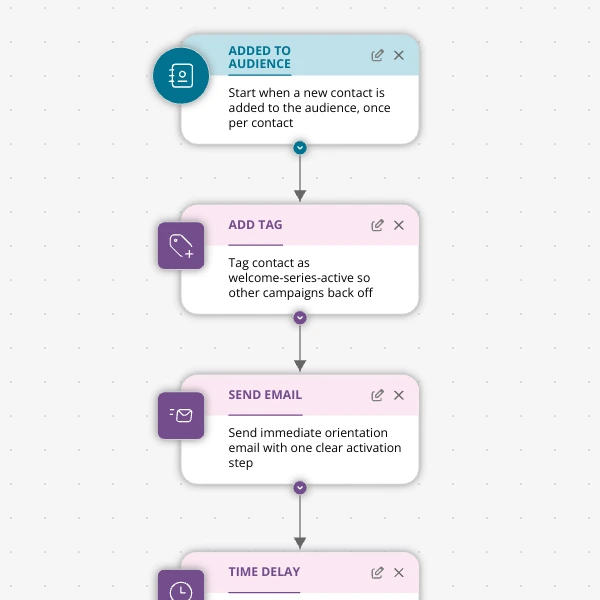
The Shopify app welcome series that turns installs into income
A step-by-step Shopify app welcome email journey for tools like CartSpark, showing how to turn new installs into activated, retained merchants using Spreeflo journeys, tags, and behavioral triggers so fewer trials quietly churn and more trials convert.
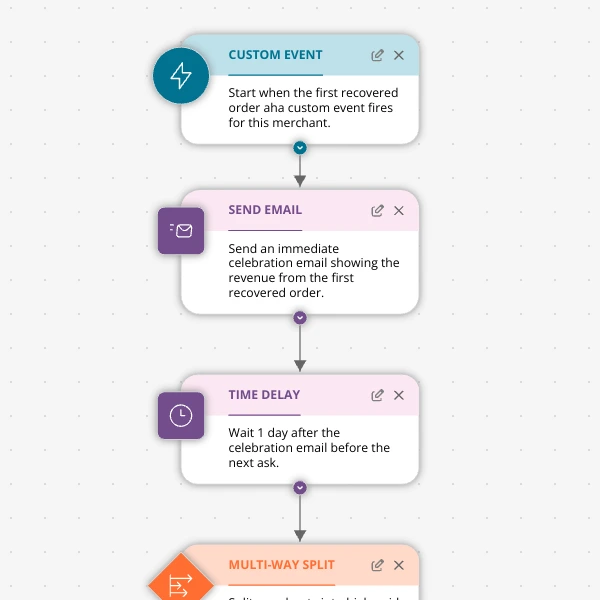
The Aha-Moment Playbook For Shopify Apps: Turn One Magic Action Into Months Of Revenue
A node-by-node playbook for Shopify and e‑commerce apps to center their lifecycle on one aha-moment custom event in Spreeflo, celebrate it, segment merchants by profile and engagement, and turn first recovered value into lasting revenue and retention.
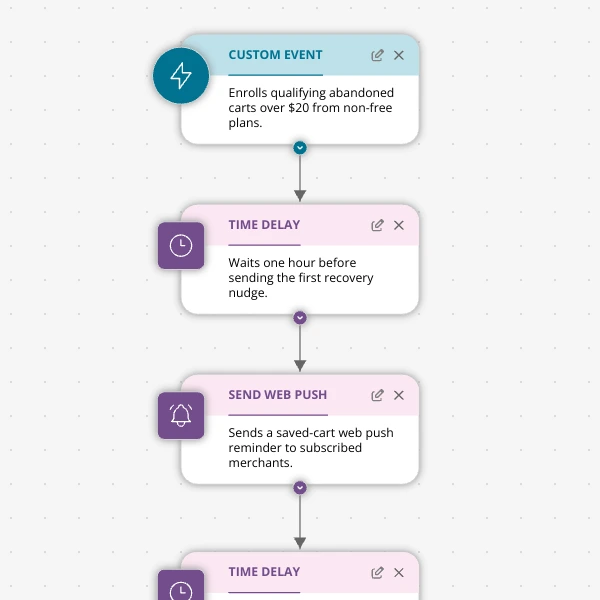
Stop Letting High‑Intent Carts Die: A 3‑Email Recovery Journey for Shopify Apps
A detailed, node-by-node walkthrough of a three-email (plus optional web push) cart-abandonment recovery journey for Shopify apps in Spreeflo, showing how to trigger events, branch on behavior, tag outcomes, and measure recovered carts and revenue.
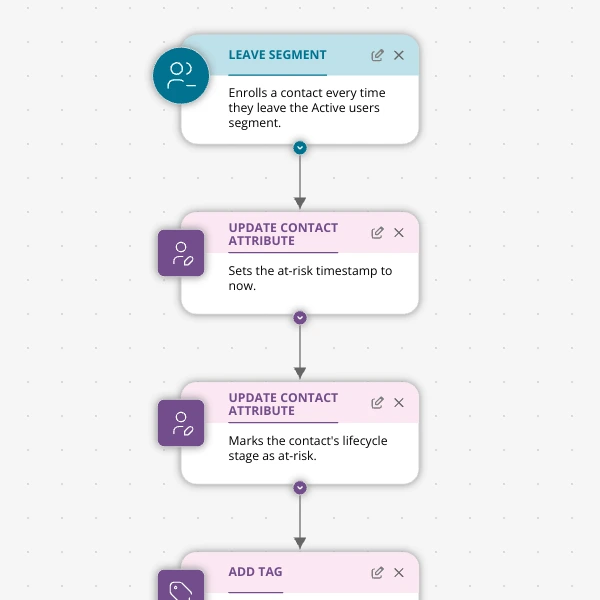
When Active Users Go Dark: A 4‑Touch Win‑Back Journey For Your Shopify App
A detailed, node-by-node Spreeflo journey for winning back previously active Shopify app users who stop engaging, using segment-based triggers, conditional logic, and a four-touch email plus internal alert sequence to recover usage and MRR.