Overview
Tags are labels you create to help organize your contacts. Tagging lets you bring your own contact structure into Spreeflo and label contacts based on data you know about them. Tags are highly customizable, so you can create and assign them as you see fit.
In this guide, you'll learn the basics of tags and how you can use them to organize your audience.
Here are some key things you should know about tags.
About tags
Think of tags as labels for your contacts that help you stay organized. If you've ever worked with a customer relationship manager (CRM) or even a blogging platform before, you might have used a tagging feature to categorize people or content. In Spreeflo, tags are a way for you to label, or categorize, contacts based on information you have about them.
How to use tags
Tags are completely customizable, so you can use them however you need to. You might want to create a comprehensive tagging structure to organize all your contacts, or you might just need a few tags as a lightweight way to identify some key contacts. Either way, tags give you the flexibility to bring the system that works for you and your business into Spreeflo.
After you create tags and add them to your contacts, use tag data to build segments and further target your contacts, or you can send emails directly to segmented contacts with tags in your audience. You can also create an automation that triggers when you add a specific tag to a contact.
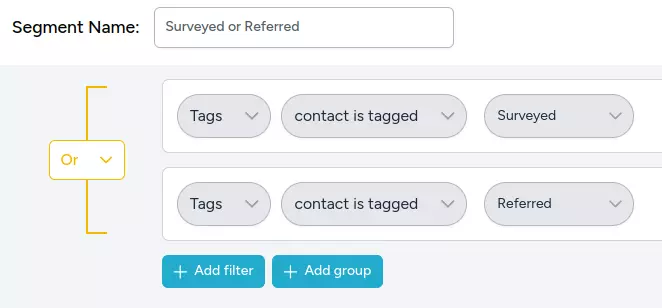
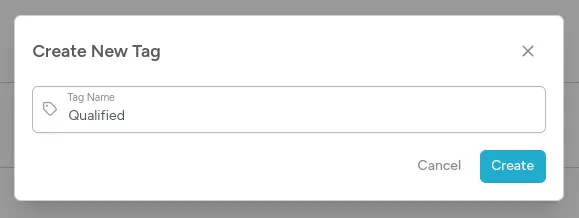
Create and add tags
You can create and add tags from the contact table at Audience > Contacts. You can also add tags to contacts in automated campaigns or journeys, or when you import contacts from a CSV file.
Tag contacts with a CSV import
To tag many contacts at once, do it as you import them. When you upload a CSV, you can add tags to every contact in the file, remove tags from them, or give each contact their own tags with a Tags column of comma-separated tag names. This works for new contacts and for contacts already in your audience, so it's also a quick way to retag a list you've exported and edited.
For the steps, the column format and how imports interact with tag-triggered automations, see Tag contacts with a CSV import in our Import Your Contacts guide.
View contact tags
Tags you've added to contacts display on the overall contact table.
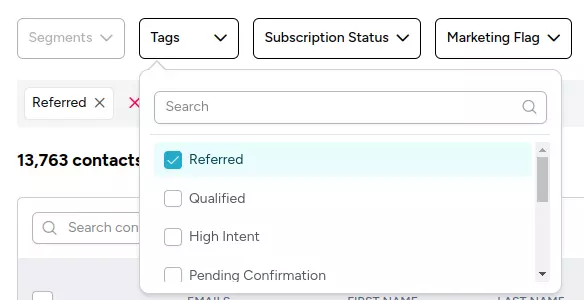
Filter contacts by tags
After you've added tags to contacts, you can filter your contact table by tags. Click the Tags filter drop-down. Then, choose or search for the name of the tag or tags you want to filter by.
Click the X icon inside a tag to remove it from your filter, or the Clear button to clear your entire filter and start over.
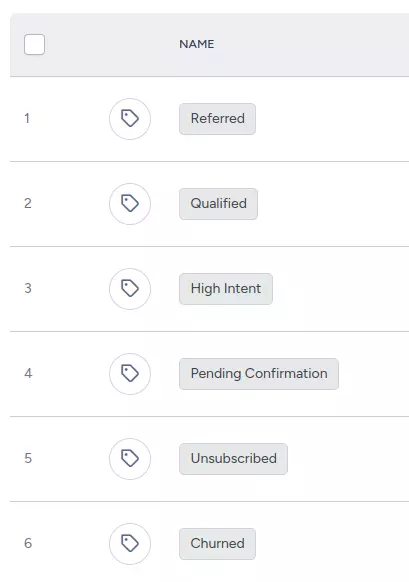
Manage tags
Your audience includes a Tags page where you can manage all your tags in one place. You can create or delete tags, view contacts assigned to a given tag, and more.
Tag examples
We know it can sometimes be hard to decide how to make such a flexible feature work for you. Here are some examples of tags you might create, depending on the type of business you have.
Need Immediate Help? Contact our support team at support@spreeflo.com or check our other guides for more information.