Overview
Bot traffic tracking records when AI assistants, search engines, and model-training crawlers request your pages — traffic your regular, browser-based analytics never sees. It's an early signal of what these tools are reading from your site, often before the human visitors they influence ever arrive.
AI crawlers fetch your raw HTML and never run JavaScript, so the browser SDK can't detect them. Bot tracking therefore runs as a tiny, zero-dependency server-side middleware on your own origin: it inspects each incoming request's User-Agent, and when it recognizes a known crawler it fire-and-forgets a report to Spreeflo. It never blocks or slows your response, and it ignores human traffic, static assets, and API routes. Everything it captures shows up in the Bot traffic card in Web Analytics.
Install the tracker
Add @spreelytics/ai-crawl to the server that renders your site:
npm i @spreelytics/ai-crawl You'll need your Spreeflo client key — the same key you pass to Spreelytics.init in the browser SDK. Copy it from Web Analytics > Settings.
Mount the middleware early in your stack. On Express it runs on GET/HEAD requests only, never touches the response, and sends its report after the request has finished:
const express = require('express');
const { createExpressAICrawlerMiddleware } = require('@spreelytics/ai-crawl');

const app = express();
app.use(createExpressAICrawlerMiddleware({ clientKey: process.env.SPREEFLO_CLIENT_KEY }));
Next.js
In the Edge or Node middleware, hand the request (and its context) to the tracker. It uses waitUntil so the report finishes in the background without delaying the response:
// middleware.ts
import { NextResponse } from 'next/server';
import { createAICrawlerMiddleware } from '@spreelytics/ai-crawl';

const trackCrawler = createAICrawlerMiddleware({ clientKey: process.env.SPREEFLO_CLIENT_KEY! });

export function middleware(request, context) {
  trackCrawler(request, context); // fire-and-forget; never delays the response
  return NextResponse.next();
}

export const config = { matcher: '/((?!_next/|api/).*)' };
Other runtimes
For any Fetch-style handler — Cloudflare Workers, Hono, Deno, Bun — wrap your handler so every request is inspected:
import { withAICrawlerTracking } from '@spreelytics/ai-crawl';

const handler = async (request) => new Response('…');

export default { fetch: withAICrawlerTracking(handler, { clientKey: SPREEFLO_CLIENT_KEY }) };
Or call it directly wherever you already have the request object:
import { trackAICrawlerRequest } from '@spreelytics/ai-crawl';

await trackAICrawlerRequest(request, { clientKey: SPREEFLO_CLIENT_KEY });
What gets tracked
Each recognized crawler is sorted into one of three categories — the three tabs on the Bot traffic card. The tracker maintains a directory of dozens of crawlers across OpenAI, Anthropic, Google, Perplexity, Microsoft, Meta, xAI, and more.
| Tab | What it means | Example crawlers |
|---|---|---|
| AI answers | An AI assistant fetching your page to answer a user's live question. | ChatGPT-User, Claude-User, Perplexity-User |
| Indexing | Search and answer-engine crawlers discovering or refreshing your content. | Googlebot, Bingbot, OAI-SearchBot, PerplexityBot |
| Training | Crawlers collecting data to train models. Uncategorized AI crawlers appear here too. | GPTBot, ClaudeBot, Bytespider, CCBot |
Requests to static assets, /api, framework internals, and common admin or webhook paths are skipped before any network call. Crawler-facing files — robots.txt, llms.txt, and sitemaps — are always tracked, since they're a strong signal of crawler interest.
Configuration
Only clientKey is required. The most useful options:
| Option | Default | Description |
|---|---|---|
clientKey | — | Required. Your Spreeflo client key from Web Analytics > Settings. |
domain | request hostname | Your primary domain, if it differs from the request host. |
enabled | true | Turn tracking off without removing the middleware. |
disableAnswerFetch | false | Don't report AI-answer crawlers (ChatGPT-User, Claude-User…). |
disableSearchCrawlers | false | Don't report indexing crawlers (Googlebot, Bingbot…). |
disableTrainingCrawlers | false | Don't report training crawlers (GPTBot, ClaudeBot…). |
publicOrigin | — | Public origin (e.g. https://example.com) to rebuild URLs behind a reverse proxy. |
timeoutMs | 1500 | Timeout for the background report. |
The Bot traffic dashboard
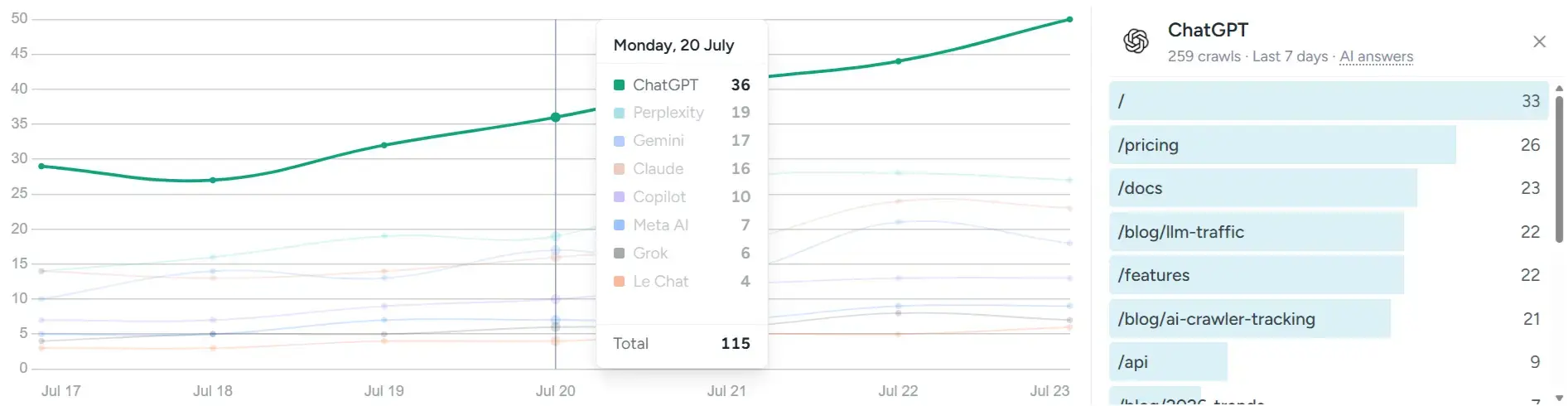
The tracker checks in with Spreeflo when your server starts, so the Bot traffic card in Web Analytics switches from its setup prompt to live data as soon as the middleware is deployed — you don't have to wait for a crawler to visit first. The date range, segment, and filters at the top of Web Analytics scope the card like every other panel.
Reading the card
Managing the card
Until the tracker has checked in, the card shows a setup state with a Set up bot tracking link and a Hide this card option. You can show or hide the card at any time from Web Analytics > Settings with the Show AI crawler traffic card toggle — useful if you don't run a server-side stack and can't install the tracker.
Tip: Bot tracking is server-side by design — crawlers never run the browser SDK, so there's no snippet to add to your pages. Keep the middleware on the origin that renders your HTML.
Need Immediate Help? Contact our support team at support@spreeflo.com or check our other guides for more information.