Overview
Our import tool helps you add or update email contacts in Spreeflo. Import from a comma-separated value file (CSV) or enter info directly into the contact table. You can also auto-update multiple existing email contacts at once.
In this guide, you'll learn how to use our import tool to add and update email contacts in Spreeflo.
The file import process has 2 parts. First, prepare your spreadsheet of email contacts outside Spreeflo, then save it as a CSV. Next, use the + Upload CSV button in Audience > Contacts to upload your file and add your email contacts to your Spreeflo audience. If you import your email contacts with subscribed email subscription status, be sure that you have permission to send them email marketing content.
Step 1: Before You Start
Spreeflo integrates with the most popular email providers:
Step 2: Prepare Your CSV File
To prepare your file for import, follow these steps.
Nice job! Now that you've prepared your import file, you're ready to import.
Step 3: Upload Your CSV to Spreeflo
To import your file to Spreeflo, follow these steps.
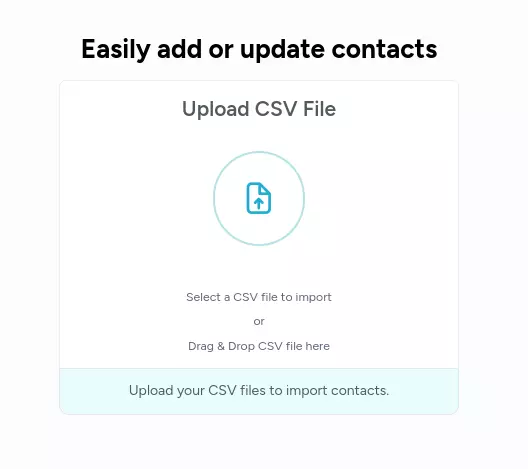
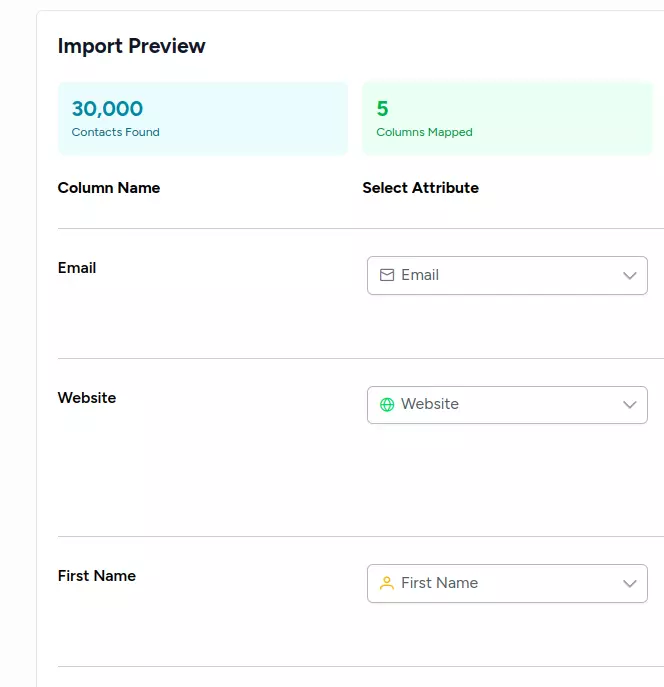
That's it! After the import is finished.
Tip: When you import email contacts to an existing audience, we won’t include any duplicate, bounced, or unsubscribed addresses that are already stored in the audience.
Tip: Because all audiences in Spreeflo are independent of each other, we can't detect duplicates, bounces, or unsubscribes across multiple audiences. If you have duplicate email contacts in different audiences, you may find it helpful to combine your audiences into a primary audience that uses segments or tags.
Tag contacts with a CSV import
You can tag contacts as you import them, and take tags off them too. Tag changes apply to every contact in the file, both the new ones and the ones already in your audience. Tags a contact already has are kept unless you choose to remove them. There are 2 ways to do it, and you can use both in the same import.
Tag every contact in the file
Use this when the whole file should get the same tags, like everyone who signed up at an event.
Tag contacts from a column in your file
Use this when different contacts need different tags. Add a column to your spreadsheet and list each contact's tags in it, separated by commas or semicolons.
Email,First Name,Tags,Remove Tags
jane@example.com,Jane,"VIP, Webinar 2026",Trial
sam@example.com,Sam,Webinar 2026,
lee@example.com,Lee,,NewsletterTip: If the same tag is set to be both added and removed for a contact, it's added. Removals happen first, then additions.
Tags and automations
Adding or removing a tag can start campaigns and journeys that trigger on that tag, and new contacts can start ones that trigger when someone joins the audience. Journeys that trigger when contacts join or leave a segment, or match criteria, can start too if that segment or criteria uses one of the tags. Under Import settings, the Automations box lists the active campaigns and journeys this import would start. The segment-based ones are marked may start, because whether a contact joins the segment also depends on its other rules. If you don't want any of them to start, for example because you're moving an existing list into Spreeflo, check Don't start campaigns or journeys for this import. Your contacts are still added, updated and tagged, and they still join matching segments. Journeys they're already in carry on as normal, including any step that waits for them to join a segment.
Import your contacts manually
To directly create new contacts, follow these steps:
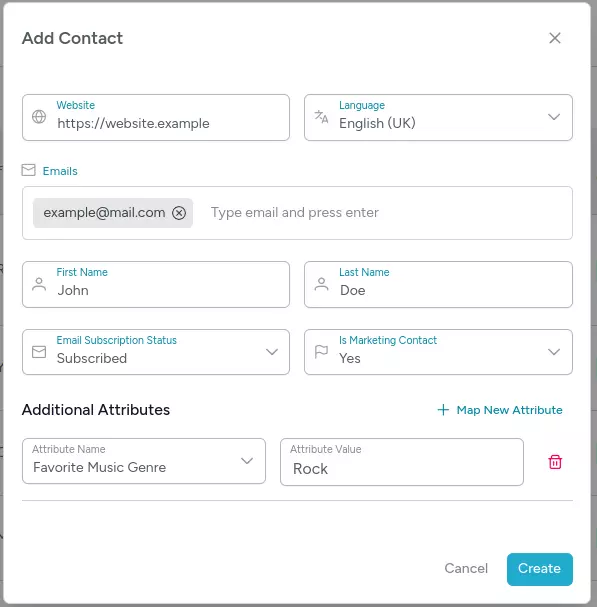
Update existing email contacts
You may need to update your email contacts' data if they've been in your audience for a while. Use our upload CSV tool to quickly update multiple contacts at once.
This option replaces existing audience field information with new information from your import file. You'll follow the same process to import new email contacts, but there are a few extra things to consider.
That's it! When you import, we'll handle the rest by scanning your email contacts and updating their information.
Troubleshooting Contact Imports
If you're having trouble importing your contacts, check out our Troubleshooting Contact Imports guide for help.
Need Immediate Help? Contact our support team at support@spreeflo.com or check our other guides for more information.