Overview
When you set up your account for the first time, you need to set up your domain records in order to start sending email. We'll be sending email on your behalf, so we need to verify that you own the domain you're sending from.
Here's how to set it up in just a few steps.
Step 1: Add Your Sending Domain
After signing in, click the Spreeflo logo in the left hand nav bar to open menu of options, and click Email Accounts. Click the + Add New Domain button.
Enter the domain that you already own and want to use for your sending email accounts into the Domain input field. We recommend using a subdomain, e.g. mail.yourdomain.com, rather than sending from your root domain yourdomain.com. Finally click Register to register your domain.
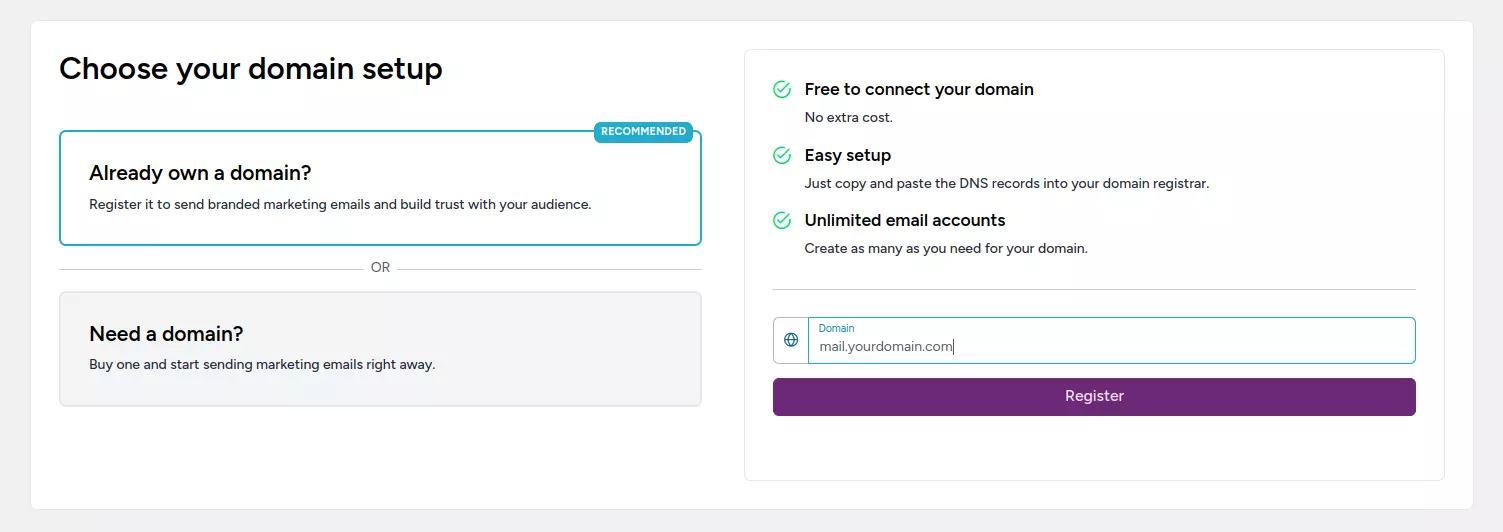
You will immediately be navigated to the Email Accounts list page for the domain you just registered.
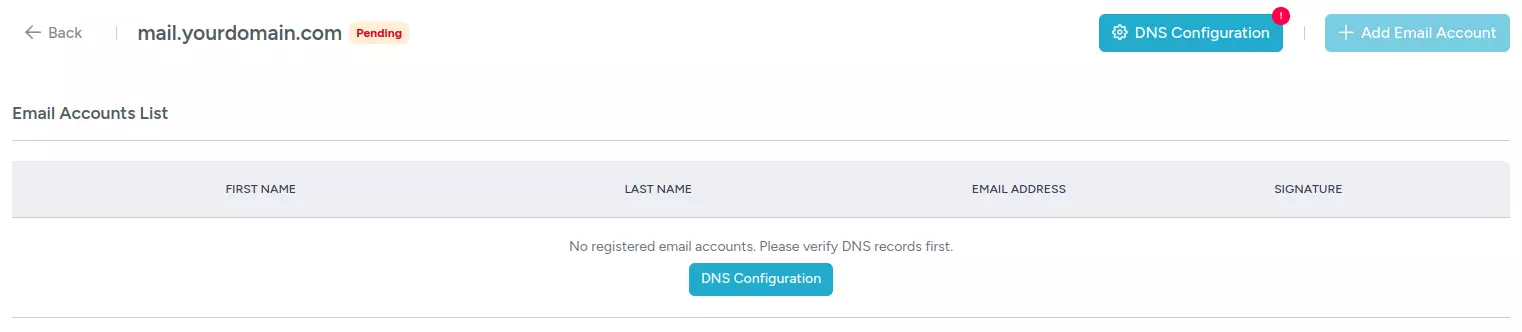
Step 2: Set Up Your DNS Records
Click the DNS Configuration button to open the DNS Configuration modal. This modal contains all the DNS records that you need to add to your DNS provider.
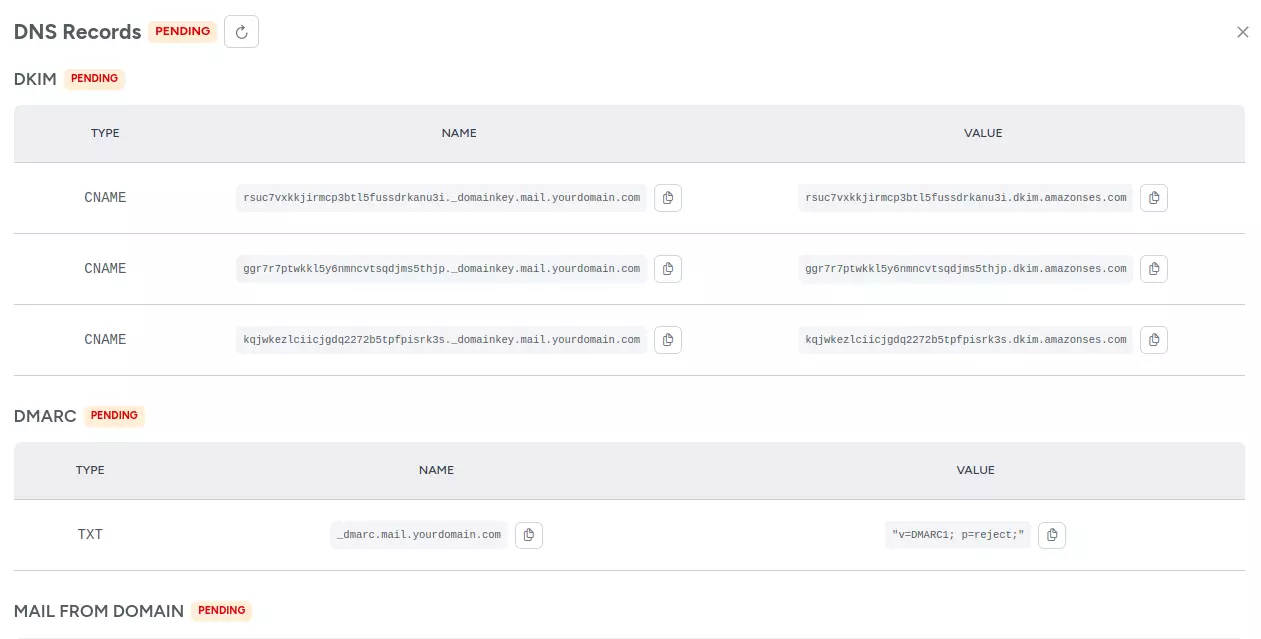
These are SPF, DKIM and MX records that need to be set up in your domain zone editor inside of your domain registrar like Namecheap, Google Domains, AWS, Godaddy or elsewhere.
Next to each record is a clipboard icon. You can use this to copy the records to your clipboard and easily paste them into your domain registrar.
Copy and paste the records one by one into your registrar.
You want to use the Type (indicated as TXT, CNAME and MX) in setting up your records, not the title of the record e.g. SPF, DKIM, MX.
Select your DNS provider below for instructions:
Cloudflare
DNS records can be added from the "DNS" page within a website.
Click Add record to open the form. Select a "Type" (TXT, MX or CNAME), then paste the "Name" and "Value" information.
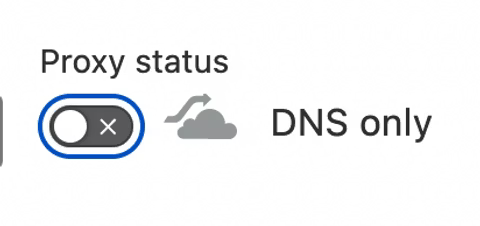
Be sure to set the proxy to "DNS Only" for the CNAME records:
Dreamhost
Dreamhost is currently unsupported in full because you cannot add custom MX records.
GoDaddy
For GoDaddy, read this guide to add your DNS records.
Google Domains
Google Domains (and potentially other providers) combine the mail server and priority inputs into a single line. So if you receive an error like this when setting up the domain, make sure to instead type out the input like this: 10 feedback-smtp.us-east-2.amazonses.com

Google domains will also include quotes " " around some record names. This is expected and will not impact anything.
Namecheap
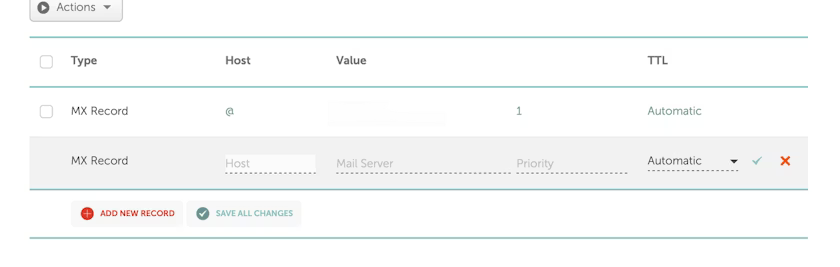
Go to the Advanced DNS page for your domain.
If you are using the automatic Gmail/Gsuite integration with Namecheap, you will need to disable the automatic integration and switch to Custom MX in the Mail Settings dropdown. You then need to add an MX record to set up Gmail on your domain again.
Then you can add Spreeflo's MX records by clicking Add new record in the Mail Settings section and pasting in the values provided in Spreeflo. Click the ✓ icon to save each record.
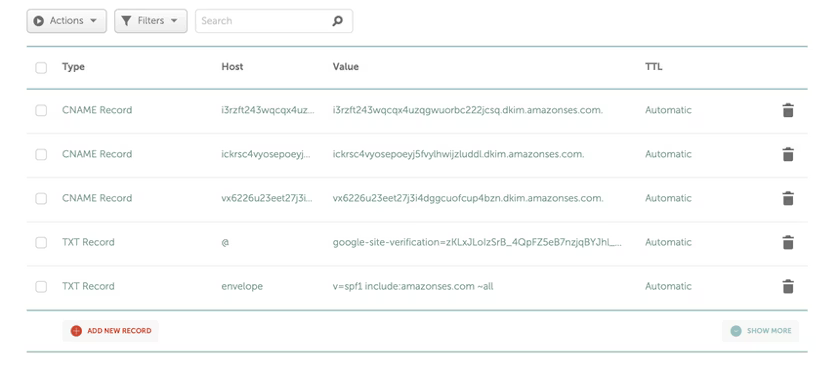
Add the TXT and CNAME records by clicking Add new record in the "Host Records" section.
Route 53
For Route 53, read this guide.
Squarespace
For adding your records to Squarespace, read this guide.
Note that you might need to trim a trailing period from the record values.
Wix
Unfortunately, Wix DNS does not support subdomains for MX records when your nameservers are pointed at Wix. .
If you purchased a domain outside of Wix, you should use the "Pointing" method for your domain, which will let you set up DNS records externally at a domain registrar. Then you can add records using this guide.
Tip: Make sure you enter the "Priority" while setting up your MX record. In most registrars this is done by formatting it like "10 pastedrecordname". Occasionally you will be asked to place it on a separate line. Just make sure to read the instructions on the page as you set up your MX record and if you have any questions, just email support@spreeflo.com.
Step 3: Verify Your Records Are Set Up
Once you have copied your records to your registrar, click the refresh button in the DNS Configuration modal to verify they have been set up correctly. Otherwise Spreeflo will periodically check that your records are set up in the background.
Tip: Sometimes records can take up to an hour to propagate across all the servers. During that time you may see different records validate. This is totally normal, just check back later.
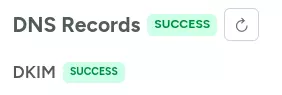
If the domain is set up correctly, you should see a page like the one below. If not, check back soon; sometimes records can take some time to propagate.
Notice the green "SUCCESS" labels next to the record categories.
Next Steps
Congratulations! You've successfully set up your domain. You can now create unlimited email accounts for the domain.
Need Immediate Help? Contact our support team at support@spreeflo.com or check our other guides for more information.