Overview
Spreeflo has 3 ways to market to your contacts:
- Broadcasts: One email to a group of contacts, sent now or at a time you pick. You write it in a short four-step composer, with optional follow-ups that run by themselves, so there is no sequence to build. Ideal for newsletters, announcements and promotions.
- Campaigns: A campaign captures a fixed snapshot of contacts when it starts. It markets to only those contacts through to completion. Ideal when you want a multi-step sequence for everyone who currently matches specific conditions.
- Journeys: A journey runs continuously. Any new contact that meets its trigger conditions will automatically enter for marketing automation. Ideal for responding to new behaviors or profile updates over time.
Broadcasts and campaigns both live on the Campaigns page, under its Broadcasts and Sequences tabs. Click Create campaign and choose Broadcast email or Sequence automation. Journeys have their own Journeys page.
Once you create a campaign or journey, you will be shown the Sequence Builder where you can add sequence components to design your automation. A broadcast opens in the broadcast composer instead. This guide covers broadcasts first, then the sequence builder and Spreeflo's library of sequence components.
Broadcasts
A broadcast sends one email to a group of contacts. Instead of a canvas, you work through four steps: Write, Audience, Follow-ups and Review. Your draft saves as you go.
Create a Broadcast
On the Campaigns page, click Create campaign and choose Broadcast email. From the Broadcasts tab, or with Create email on the Home page, you go straight to choosing where to start:
- Blank: build the email in the email builder, from scratch or from a template, or paste in your own HTML.
- A saved email: start from a copy of one of your marketing emails.
- Duplicate last broadcast: reuse the email, sender, audience and follow-ups of your most recent broadcast in this audience, with a new subject. Only shown once the audience has a broadcast.
Picking an email template from Start with a template on the Home page also creates a broadcast with that design.
Write
Write the email. The sender, subject line and preview text sit together on one row at the top, laid out as they will look in an inbox. Pick the sender from your verified email accounts; Manage senders at the bottom of that list takes you to your email account settings. Every broadcast needs a subject and an unsubscribe link.
Audience
Choose who gets the email: everyone in the audience, the contacts in one of your segments, or contacts who match conditions you set. Use Leave out to exclude one or more segments. The step shows how many contacts the email will reach. Only subscribed contacts with marketing turned on are sent marketing email.
Follow-ups
Follow-ups are optional. They run by themselves once the email goes out, so there is nothing to build:
- Resend to people who didn't open: the same email again, under a new subject, to everyone it reached who hasn't opened it, after a wait you choose in hours or days.
- Follow up with people who opened but didn't click: a separate, shorter email that nudges them toward your link. Start it blank, from a saved email, or from a copy of the broadcast.
- Email your team when someone replies: one alert per contact, the first time they reply. Alerts go to all team admins, or to the team members you pick.
- Link clicks: tag people the first time they click a particular link in the email.
Each contact gets at most one of the resend and the follow-up email, never both. The follow-ups rely on tracking: the resend and the follow-up email need open tracking, link tagging needs click tracking, and reply alerts need the MX record for receiving replies. Without them, those follow-ups can't tell who did what.
Review and Send
Check the details, then use Send a test to send the email to people on your team, with variables filled in from a contact in the audience. When you're ready, send it now or schedule it for a date, time and time zone of your choosing. If anything still needs fixing, such as a missing subject, an unverified sender or an audience with no subscribed contacts, the step tells you what and where before it lets you send. A scheduled broadcast can be unscheduled to edit it again.
Broadcast Report
Once a broadcast goes out, it opens on its report. The report shows how many were sent, delivered, opened, clicked, replied and bounced, along with unsubscribes, spam complaints and attributed revenue. Each email (the broadcast, the resend and the follow-up) has its own row, and Link clicks breaks clicks down by link.
Pick any number to see the contacts behind it, and tag them. If people didn't open it and you didn't set up a resend, Resend to non-openers creates a new draft that sends the email again to them, under a new subject. Duplicate creates a draft copy named after the original with (Copy) added.
Moving a Broadcast to the Sequence Builder
When a broadcast needs more than the composer offers, open it in the sequence builder: Open in sequence builder for a draft, or Duplicate to sequence builder for one that has gone out, which leaves the original untouched. From then on it is an ordinary campaign you edit on the canvas, and it can no longer be edited in the composer.
Reply alerts and link tagging do not carry over: they only work for broadcasts. If you rely on them, add Check Email Activity steps on the canvas instead, e.g. a Send Internal Email action on the Replied branch.
Sequence Builder
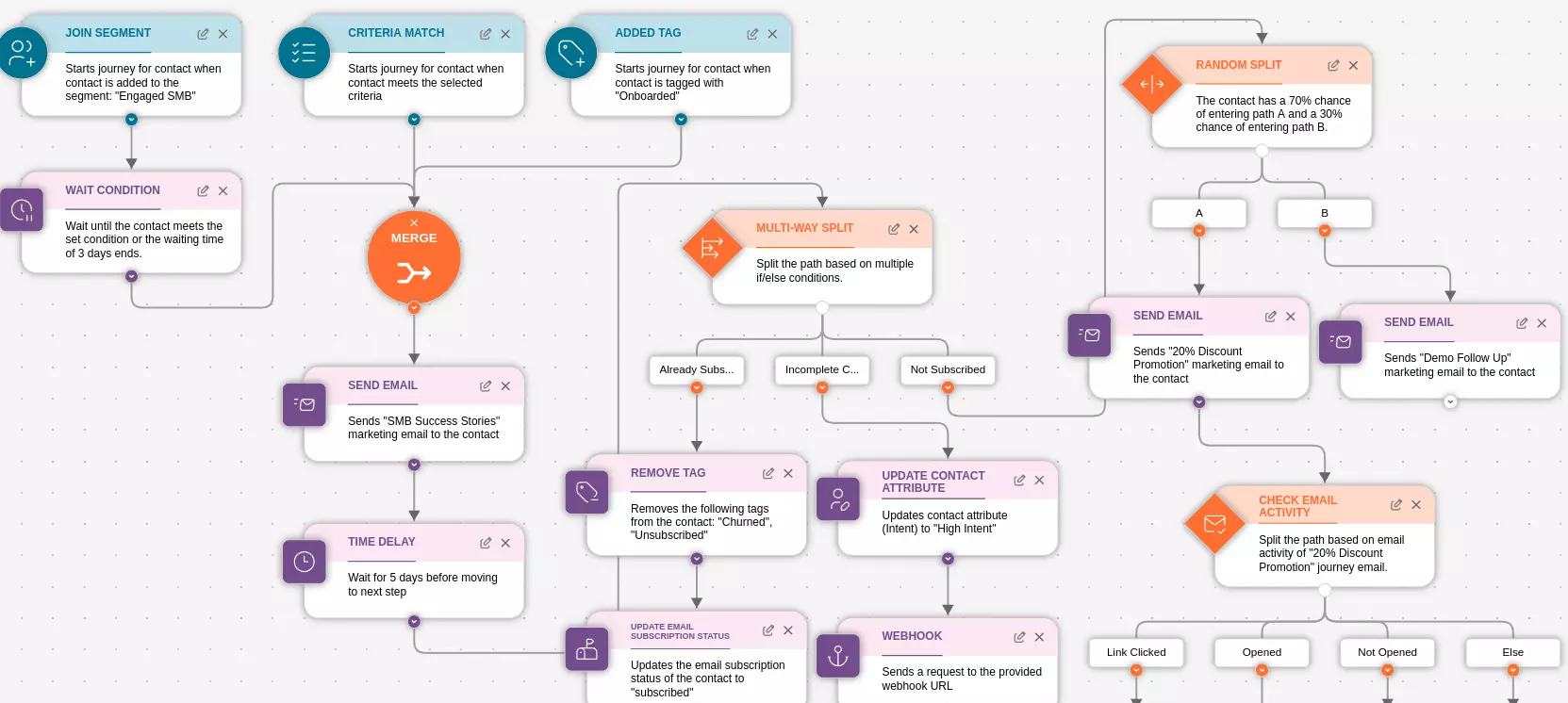
The sequence builder is a visual editor that allows you to drag and drop components to create your automation. You connect the components together to create the flow of actions. The sequences can branch out to multiple paths based on the conditions you set so that your automation can be highly personalized and responsive to your contacts.
The main difference between campaigns and journeys in regards to the sequence builder is that:
Campaigns do not have triggers. Otherwise, campaigns have available to the same library of sequence components as journeys.
Sequence Components
The sequence builder has a library of sequence components that you can drag and drop into the sequence editor. Each component has a specific function and can be configured to fit your needs.
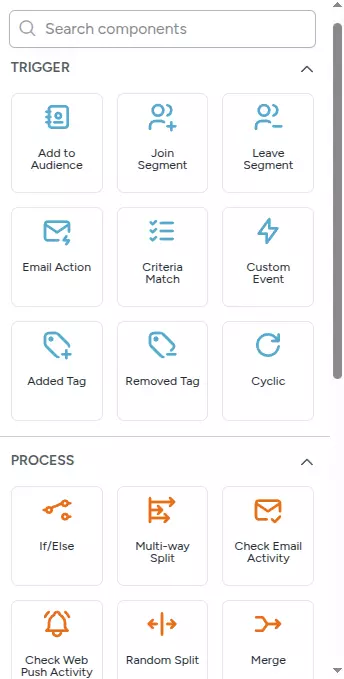
Here we will explore each sequence component type and how to use them.
Triggers
Triggers are the starting point of a sequence. They are used to start an automation for a contact once the contact meets the trigger conditions. Only journeys can have triggers.
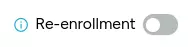
Triggers have a Re-enrollment toggle. By default re-enrollment is off. Turn this on if you'd like contacts to go through this journey every time they meet the starting trigger conditions. Otherwise, contacts will only go through the journey if contact has not entered this journey before.
The Re-enrollment toggle is set per trigger, not per journey. Since a journey can have multiple triggers, you can mix triggers that have re-enrollment on with triggers that have it off in the same journey. Note that the "off" check is journey-scoped: if a contact has already gone through the journey via any other trigger, a trigger with re-enrollment off will not re-enroll that contact.
Regardless of the Re-enrollment setting, a contact who is currently moving through the journey will not be re-enrolled, even if the trigger conditions are met again. This is intentional — it prevents the contact from being processed by two parallel runs of the same journey and receiving duplicate or interleaved messaging in unpredictable order. The contact must finish or exit the journey before any trigger can enroll them again.
If your use case requires a message to be sent every time a condition is met — regardless of whether the contact is currently in a journey — that is a transactional use case and is better served by Spreeflo's transactional email API rather than a journey.
Add to Audience Trigger
Starts a journey for a contact when contact is added to an audience. Use this trigger to take actions on contacts without segmentation, e.g. send welcome emails, onboarding, etc.
Join Segment Trigger
Starts a journey for a contact when a contact joins a specified segment. Use this trigger for segment-based marketing campaigns.
Leave Segment Trigger
Starts a journey for a contact when a contact leaves a specified segment. Use this trigger for segment-based marketing campaigns.
Email Action Trigger
Starts journey for contact when contact performs the selected email action on your emails. The email actions that can be observed are Delivered, Opened, Link Clicked, and Replied. Do note that if you disabled tracking of email opens or email clicks, or did not set up the MX record for receiving email replies, then these actions will not be observed and this trigger will not be triggered.
Criteria Match Trigger
Starts a journey for a contact when a contact newly meets the selected criteria. This trigger behaves similarly to the Join Segment Trigger but with the ability to specify a custom criteria within the journey itself and without saving actual segments.
Added Tag Trigger
Starts journey for contact when contact is added with the selected tag.
Removed Tag Trigger
Starts journey for contact when contact is removed of the selected tag.
Cyclic Trigger
Starts journey for contact at regular intervals, such as daily, weekly, monthly or yearly, for contacts that meet the selected criteria. Use this to trigger periodic marketing campaigns, e.g. discounts for churned customers at end of every week for win-back.
You configure the repeat interval (every N days, weeks, months, or years), the time of day, and the timezone the schedule runs in. At each scheduled tick, every contact who currently matches the selected criteria is enrolled into the journey.
Time Trigger
Starts a journey for each contact at a time worked out from one of their own dates, e.g. 30 days after they subscribed, or 7 days before their renewal date. Pick the date to schedule from — the contact's added date, or any contact attribute of type Date — then start the contact when that date arrives, or a number of hours, days, weeks, months, or years before or after it.
Turn on Repeat this schedule to keep starting the contact on a repeating cycle at a time of day and timezone you choose, e.g. every year on their birthday. Re-enrollment is required while a schedule repeats, so it stays on until you turn the repeat off. Turn on Add enrollment criteria to additionally require the contact to match conditions, which are re-checked when the contact is about to start — a contact who no longer matches by then is dropped.
Custom Event Trigger
Starts a journey for a contact when a custom event is recorded for the contact. Use this trigger to respond to events you've sent to Spreeflo from your app or website, e.g. signed_up, purchased, abandoned_cart. You can also filter on event properties to start the journey only when the event matches specific conditions.
Form Submission Trigger
Starts a journey for a contact when the contact submits a selected form. Pick which published form to listen on. Use this to follow up on form submissions automatically — e.g. send a welcome series after a newsletter signup, or route new leads from a "Contact sales" form. An Only trigger for new contacts option starts the journey only for contacts who are newly added to your audience by the submission, so first-time submitters can be treated differently from returning ones.
Object Updated Trigger
Starts a journey when an attribute of a custom object of the selected type changes. Pick the object type, then either a specific attribute to watch or Any attribute. Every contact related to the changed object is enrolled.
Related to Object Trigger
Starts a journey for a contact when the contact is related to an object of the selected type. Pick the object type to watch.
Unrelated from Object Trigger
Starts a journey for a contact when the contact is unrelated from an object of the selected type. Pick the object type to watch.
Processes
Processes branch the sequence flow based on the conditions you set so that your automation can be highly personalized and responsive to your contacts.
If/Else Process
Split the path based on a if/else condition.
Multi-way Split Process
Split the path into multiple named branches (up to 10), each with its own condition, plus a final Else branch for contacts who do not match any. Branches are evaluated top to bottom, and the contact takes the first matching branch.
Check Email Activity Process
Split the path based on specified email activity for a selected marketing email. You can branch on any combination of Delivered, Opened, Link Clicked, Replied, and their negations (Not Delivered, Not Opened, Link Not Clicked, Not Replied). Each selected activity becomes its own outgoing branch. If none of the selected activities are observed, the sequence flow defaults to the Else branch.
Do note that if you disabled tracking of email opens or email clicks, or did not set up the MX record for receiving email replies, then these actions will not be observed and this process default to the Else branch.
Check Web Push Activity Process
Split the path based on specified web push activity for a selected web push notification. You can branch on any combination of Sent, Delivered, Clicked, Dismissed, and their negations. Each selected activity becomes its own outgoing branch. If none of the selected activities are observed, the sequence flow defaults to the Else branch.
Check Form Activity Process
Split the path based on a contact's activity with a selected form. You can branch on any combination of Submitted, Dismissed, Shown, and their negations (Not Submitted, Not Dismissed, Not Shown). Each selected activity becomes its own outgoing branch. If none of the selected activities apply, the sequence flow defaults to the Else branch.
Random Split Process
Split the path between two paths by a percentage you choose (anywhere from 1% to 99%). Use this to randomly split your contacts into two groups for A/B testing or to set aside a holdout group.
Merge Process
Merge multiple paths into a single path. Use this to combine multiple paths into a single path.
Actions
Actions are the steps to take for the contact, e.g. send email, add tag, etc. See below for the list of actions available.
Send Email Action
Send a marketing email to the contact. You specify the sending email account to send the marketing email. Create the email between two approaches: Use Your Own or Email Builder.
A Send only once toggle (on by default) prevents the same contact from receiving the email more than once even if they pass through this step again. Turn it off if the same contact should be allowed to receive the email on repeated runs.
Send Web Push Action
Send a web push notification to the contact. The contact must have subscribed to web push notifications on your site for this action to deliver. Use this to re-engage contacts with timely updates outside of email, e.g. flash sales, back-in-stock alerts, or new content announcements. This action requires a Pro plan.
Popup Form Action
Show a popup form to the contact while they're browsing your site. Select a published form and the popup embed (Popup, Slider, Popover, or Sidetab) used to display it — reuse an existing popup embed or create a new one. Because popups are delivered live through the Spreeflo SDK, this action only fires while the contact is on a site that has the SDK installed. This action requires a Pro plan.
You can fine-tune when and where it appears: Show on all pages, only specific page URLs, or all pages except certain URLs (wildcards supported); set an expiration so the popup stops being eligible after a number of days or a specific date; and add a frequency cap to show it at most a set number of times per time window.
Send Internal Email Action
Send an internal email to yourself or your team. Use this to be alerted of any actions for you to take yourself, e.g. call a contact to close a sale, etc.
Add Tag Action
Add one or more tags to the contact. A Force tag trigger toggle is available — when on, the Added Tag trigger fires for downstream journeys even if the contact already has the tag. By default this is off, so no trigger event is emitted when the tag was already present.
Remove Tag Action
Remove one or more tags from the contact. A Force tag trigger toggle is available — when on, the Removed Tag trigger fires for downstream journeys even if the contact did not have the tag. By default this is off.
Update Contact Attribute Action
Update a contact attribute. You can update the attribute value or delete the attribute. This includes updating the contact's email subscription status and marketing status.
The available update options depend on the attribute's data type. Text attributes can be overwritten or appended to. Number attributes can be overwritten, incremented, decremented, or multiplied. Boolean attributes are set to true or false directly. Timestamp attributes can be set to the current time or to a specific date.
Update Email Subscription Status Action
Update the email subscription status of the contact. You can update the email subscription status to Subscribed, Unsubscribed, or Non-subscribed.
Time Delay Action
Wait for a specified amount of time before continuing the sequence. The delay can be configured in hours or days.
Wait Condition Action
Wait for a specified condition to be met before continuing the sequence. You also set a timeout duration (in hours or days). The contact proceeds to the next step as soon as either the condition becomes true or the timeout expires — whichever happens first.
Webhook Action
Trigger a webhook when the action is performed. The webhook passes contact information to the webhook URL. Use the webhook to integrate Spreeflo automation with your app for bespoke workflows. This action requires a Pro plan.
You can choose between POST and GET request methods, send all contact attributes or only a specific subset, and optionally authenticate the request using either an API key (header name and value) or a Bearer token.
Need Immediate Help? Contact our support team at support@spreeflo.com or check our other guides for more information.