The Health‑Score Alarm That Saves SEO SaaS Accounts Before They Churn
A detailed Spreeflo journey for SEO SaaS teams that turns dropping health scores into structured alarms, combining internal alerts, customer check-ins, and wait conditions so at‑risk accounts are saved before they quietly churn.
Industry
Niche
Pattern
Loading sequence...
The worst churn is the one you see only when a cancellation email hits your inbox.
For SEO SaaS, it usually wasn’t a surprise to the customer. Their usage dropped, rankings weren’t checked, briefs weren’t generated, and eventually your tool slid out of their workflow. You just didn’t see the pattern early enough to do anything.
This playbook turns that slow slide into a loud, structured alarm: when an account’s health score drops, your team is alerted and the customer gets a thoughtful check‑in email. The sequence at the top of this page is the whole journey, end to end.
We’ll walk through how a team like RankPulse (our three‑person rank-tracking SaaS at ~$35k MRR) wires this in Spreeflo so that “health score < 50” never goes unnoticed again.
Why health-score alerts matter more in SEO SaaS
Most SEO tools are not “set and forget.” Your value is in repeated use:
Checking keyword rankings regularly
Running technical audits after deploys
Generating content briefs for each new piece
When that usage stops, it’s usually weeks before the subscription stops. That window is where you either save the account or quietly leak lifetime value.
Two truths for SEO SaaS:
You actually have great behavioral data. Logins, tracked keywords, briefs created, domains connected, audits run. Perfect ingredients for a health score.
Your CS “process” is often the founder skimming Stripe churn emails and maybe sending a personal note.
This journey formalizes that process. It captures detailed signals on each customer so you can speak to them uniquely, and it keeps engagement nurtured instead of hoping they’ll come back on their own.
Step 0: Make sure your health score exists in Spreeflo
Before the journey can react to risk, Spreeflo needs the health score on the contact record.
Most SEO SaaS teams calculate health in their own backend. For example:
Start from 100
Subtract points for no logins over 7 days
Add points for connecting Google Search Console
Add points for generating briefs, checking rankings, running audits
Once you have that number per account or per seat:
Store it as a custom NUMBER attribute on the contact in Spreeflo, e.g.
health_score.Every time your backend recalculates, send the new value to Spreeflo via the Spreeflo API so the contact attribute stays fresh. The Spreeflo API docs cover how to upsert contact attributes server-side.
You don’t need minute-by-minute granularity. Once or twice a day is plenty for a “this account is slipping” alarm.
Step 1: Criteria Match trigger – “this account just became risky”
The journey starts with a Criteria Match trigger, because “health score dropped below 50” is really “contact now matches this condition.”
Configuration:
Trigger type: Criteria Match
Criteria (built in the segment builder):
Contact attribute
health_scoreoperator: less than
value: 50
AND Contact is not tagged with
health-alert-active
Why the extra tag condition?
You only want to fire the alert when an account newly becomes risky, not on every small change while they’re already being worked. The health-alert-active tag acts as a simple “we’re on it” flag.
Re-enrollment:
Set Re-enrollment to ON.
You want this journey to be able to run again for the same account months later if they recover and then slip again. The “already in the journey” safeguard still prevents duplicate parallel runs; re-enrollment simply allows multiple episodes over time.
Step 2: Tag and classify the risk
The first thing the journey does after the trigger is label the contact.
Node: Add Tag
Tags to add:
health-alert-activehealth-at-risk
Now you can quickly pull “all currently at-risk accounts” in your audience or any dashboard.
You can also add a separate long-term tag like ever-at-risk if you want to run “accounts we had to save once” analysis later. The guide on using tags to label contacts is worth a skim here.
Optional: Update Contact Attribute
Many teams like to store a plain-text risk label alongside the numeric score:
Attribute:
risk_stage(TEXT)Update type: Update
Value:
at_risk
This isn’t strictly necessary, but it makes reporting and filters friendlier than remembering that “< 50” means at-risk.
Step 3: Alert the humans who can actually save the account
Next, you route a clear, contextual internal alert to whoever owns retention.
Node: Send Internal Email
Configuration:
Recipient: this is handled by the “From (email account)” / template settings; typically a shared inbox like
cs@,success@, or even the founder.Send only once: Keep the default ON. You don’t want multiple internal alerts for the same journey run.
Email content (using Spreeflo’s email builder):
Subject ideas:
“Account at risk: {{company_name}} health score dropped to {{health_score}}”
“Heads up: {{company_name}} looks like a churn risk”
Body ideas:
Who they are: company, main contact, plan, MRR
What changed: last health score vs current, maybe key usage stats you’ve stored as attributes (e.g.
tracked_keywords_count,briefs_last_30_days)What to do: a simple checklist or link to your existing playbook (e.g. “Review their last login, check open tickets, send a Loom with 2 quick wins”).
Because the internal email can reference any contact attribute, every alert has enough context that your team isn’t digging through three tools to understand what’s going on.
Step 4: Give the team a head start, then send a customer check-in
You don’t have to wait days to talk to the customer, but you probably want your CS person to see the alert before the automated email lands.
Node: Time Delay
Delay: 1 hour
Unit: Hours
This hour gives someone the chance to skim the account and, if needed, customize the outbound email or decide to reach out personally instead.
Then:
Node: Send Email (customer-facing)
This is the “contact-side check-in offer” from the pattern description.
Content principles:
Acknowledge their context, not your quota:
“I noticed activity in your RankPulse workspace has slowed and wanted to check if rankings or priorities have changed on your side.”Offer a clear, low-friction next step:
A link to book a 15-minute “SEO workflow tune-up” call
Or “reply to this email with one campaign you’re stuck on and I’ll send a step-by-step breakdown.”Show you see them, specifically:
Reference attributes that matter: their role (agency vs in-house), plan level, how long they’ve been a customer.
If you’re on Spreeflo’s Professional plan, you can use AI personalization and AI variables to draft tailored versions for agencies vs in-house teams without hand-writing each one.
Step 5: Wait to see if the account stabilizes
The automation shouldn’t carpet-bomb people. It should react to what happens next.
You care about two things:
Does the account’s health rebound?
Did anyone on the team already intervene?
We’ll capture the first directly in the flow and assume the second is handled via your existing CS process (for example, if a CSM manually reaches out, they can note it in your CRM and later clear the health-alert-active tag or update a status via the API).
Node: Wait Condition
Configuration using the segment builder:
Condition:
Group type: AND
Rule: Contact attribute
health_scoreoperator: greater than
value: 60
Timeout: 3 days
After 3 days, move ahead even if the score hasn’t improved.
Interpretation: “Wait up to three days for this account’s health score to recover above 60. If it does, proceed immediately. If not, escalate.”
This node ensures you never send a “hey, you look at risk” escalation when, in fact, they already came back to life yesterday.
Step 6: Branch on recovered vs still-at-risk
Right after the Wait Condition, add an If/Else process node checking the same condition:
Node: If/Else
Condition:
Contact attribute
health_scoregreater than 60
Two branches:
Then (recovered)
Else (still at risk)
Now you can route the two scenarios cleanly.
6a. If they recovered: tidy up and optionally close the loop
Recovered path nodes:
Remove Tag
Tags to remove:health-alert-active
Optionallyhealth-at-riskif you don’t care about “ever at risk” history.Optional: Add Tag
Tag:health-recovered(useful for reporting on “saves” later).Optional: Send Internal Email
A short “Good news: {{company_name}} health recovered to {{health_score}}” helps your team see their work paying off and closes the loop on the original alert.
You don’t have to send a second customer email here. They’ve already re-engaged in the product, which is the real goal.
6b. If they’re still at risk: escalate without spamming
Still-at-risk path nodes:
Send Internal Email
This is a stronger alert, for example:
Subject: “Critical: {{company_name}} still at risk after 3 days”
Body: call out that the health score is still low and whether the check-in email was opened (you can store a simpleat_risk_email_openedflag as an attribute via other journeys if you want that level of detail).End the journey without another automated customer email.
Why no second automated email by default?
If your first check-in had a clear offer, following it up with another automated message a few days later often feels pushy, especially for agency customers who are juggling dozens of tools.
At this point, a personal Loom or a phone call typically performs better than another sequence email.
If you do want a second automated nudge, add a Time Delay (at least 1 day) before a new Send Email node in this path. That preserves message pacing and avoids “email whiplash.”
Critically, notice we did not remove the health-alert-active tag in this branch. That’s deliberate: it prevents the Criteria Match trigger from re-enrolling the same account over and over while they’re in a long, low-health state. When your CS team eventually decides the case is “saved” or “lost,” they can remove or update that tag via your CRM or an internal tool that talks to the Spreeflo API.
Metrics that tell you this journey is doing its job
A health-score alert isn’t about opens and clicks in isolation. It’s about revenue saved.
Here are the three metrics that matter and how to measure them in practice:
Save rate
Among accounts that entered this journey (health score < 50), what percentage are still paying 60 days later?
Before/after comparison: Export a list of at-risk accounts from a period before the journey existed and see how many churned within 60 days. Compare to the same cohort after the journey is live.Time-to-save action
How long does it take from “score drops below 50” to “CS takes a meaningful action”?
The internal email is instantaneous. The bottleneck is human time.
Track when a CSM logs their outreach in your CRM or when an “account touched” attribute is updated via API. Aim to get that median down to a day or less.Churn reduction
Ultimately you care about net churn. For a realistic signal:
Look at churn rate for accounts whose health score ever dropped below 50, before vs after implementing the journey.
If you’re segmenting by plan, you might find the pattern pays for itself many times over just in “agency-plus” or “enterprise” tiers.
Because every at-risk account is labeled with tags and attributes, you can filter easily in your audience or export subsets for deeper analysis. This is exactly the kind of fine-grained tracking that lets founder-led businesses speak uniquely to each customer and stop leaking lifetime value in silence.
Variations worth considering for your product
Once the basic flow is live, there are a few simple extensions you can bolt on without rewriting everything:
Plan-based thresholds
Use a Multi-way Split early in the journey to branch on plan (e.g. Pro, Agency, Enterprise) and set different health-score thresholds or internal emails per tier. High-ARR accounts might justify manual outreach sooner.Email engagement-based routing
Instead of only watching the health score, you can insert a Time Delay after the first customer email and then a Check Email Activity process node. If someone clicks the “book a call” link but doesn’t book, a different follow-up might be appropriate than for someone who never opened the email.Webhook to your CRM or Slack
If you’re on the Professional plan, a Webhook action right after the internal email can post into your CS Slack channel or your CRM with all the contact details. That keeps the whole team aware without requiring them to live inside Spreeflo.
These are evolutions, not prerequisites. The core pattern is simple: one trigger, a couple of tags, an internal alert, a thoughtful customer check-in, and a wait-and-see split.
The deeper win: making retention a system, not a scramble
Most SEO SaaS churn isn’t a competitor “stealing” your customers. It’s quiet disengagement. People get busy, campaigns end, new hires don’t get trained on your tool. Without a system, you only see it when the Stripe webhook fires.
This health-score alert journey turns that leak into a managed pipeline of saves:
You capture a richer picture of each customer with attributes like
health_score,risk_stage, and plan and usage indicators.You speak to each at-risk account in a way that matches their behavior and value, not via generic “are you still there?” blasts.
You make customer success less about heroics and more about a repeatable rhythm that a tiny team can run reliably.
If you’re already using Spreeflo, you can build a journey like the one at the top of this page in an afternoon and watch the first at-risk alerts arrive the next time your health scores update. For an SEO SaaS founder aiming to grow MRR without ballooning headcount, that kind of always-on safety net is exactly where founder-led businesses win on leverage, not headcount.
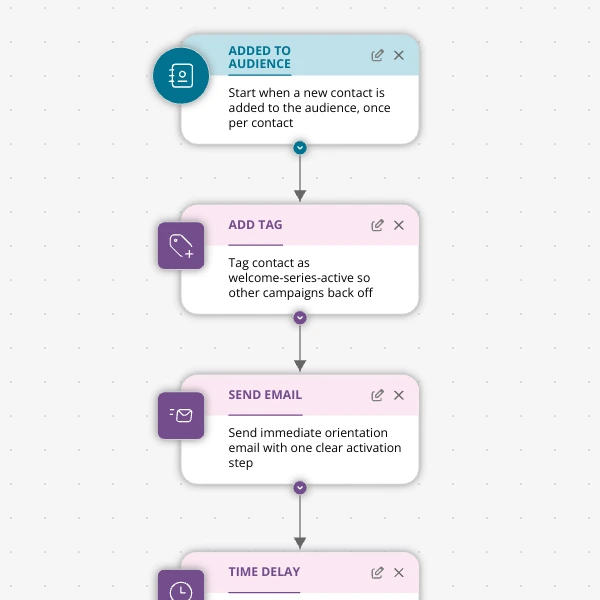
The Shopify app welcome series that turns installs into income
A step-by-step Shopify app welcome email journey for tools like CartSpark, showing how to turn new installs into activated, retained merchants using Spreeflo journeys, tags, and behavioral triggers so fewer trials quietly churn and more trials convert.
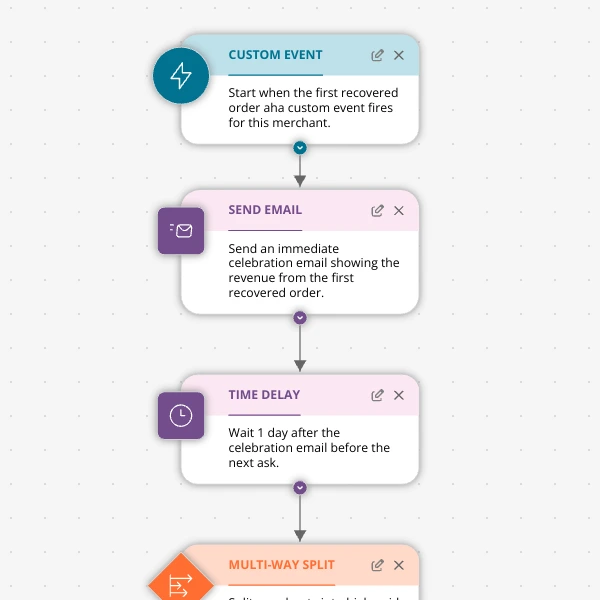
The Aha-Moment Playbook For Shopify Apps: Turn One Magic Action Into Months Of Revenue
A node-by-node playbook for Shopify and e‑commerce apps to center their lifecycle on one aha-moment custom event in Spreeflo, celebrate it, segment merchants by profile and engagement, and turn first recovered value into lasting revenue and retention.
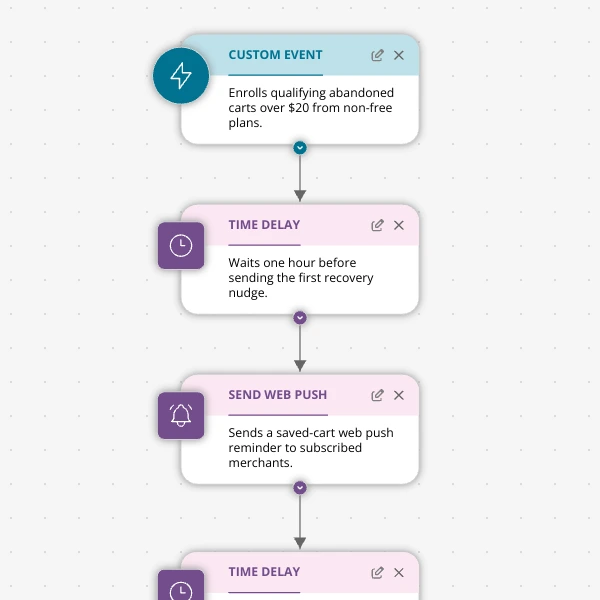
Stop Letting High‑Intent Carts Die: A 3‑Email Recovery Journey for Shopify Apps
A detailed, node-by-node walkthrough of a three-email (plus optional web push) cart-abandonment recovery journey for Shopify apps in Spreeflo, showing how to trigger events, branch on behavior, tag outcomes, and measure recovered carts and revenue.
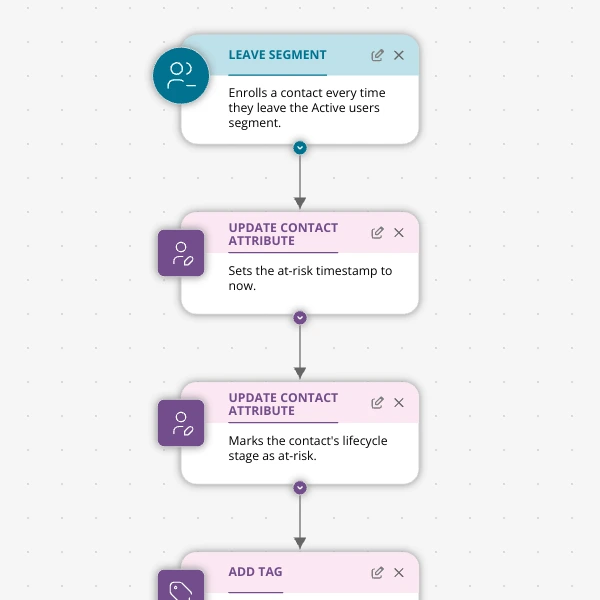
When Active Users Go Dark: A 4‑Touch Win‑Back Journey For Your Shopify App
A detailed, node-by-node Spreeflo journey for winning back previously active Shopify app users who stop engaging, using segment-based triggers, conditional logic, and a four-touch email plus internal alert sequence to recover usage and MRR.