The Persistent Reminder Play Your SEO SaaS Needs (Without Annoying Users)
Shows SEO SaaS teams how to build a persistent, contextual reminder journey in Spreeflo using web push and email, so key setup steps like connecting Google Search Console actually get completed and drive long-term retention.
Industry
Niche
Pattern
Loading sequence...
A customer spins up a project, sees your “Connect Search Console” banner, thinks “I’ll do that later”… and never does. Two months later they cancel, having never seen the data that would’ve made your tool indispensable.
For most SEO SaaS products, there are one or two critical setup steps like this that make or break long‑term retention. An in‑app content card alone isn’t enough. You need a reminder that sticks around until the job is done, without turning into spam.
The sequence at the top of this page is the whole journey, end to end. It shows how to approximate that “persistent in‑app card” pattern using web push plus email in Spreeflo, so the same context‑specific prompt follows your user until they act.
Let’s walk through how it works and how to adapt it to your own product.
Why persistent, contextual reminders matter for SEO SaaS
Take a fictional example: RankBeam, a 4‑person SEO SaaS doing ~$45k MRR. They’ve learned that users who connect Google Search Console in the first 7 days have:
30–40% higher activation rates
Meaningfully lower 90‑day churn
Much higher odds of upgrading to agency plans
But when they look at product analytics, only ~45% of trials ever connect GSC. Most saw the prompt once in‑app, then forgot.
The problem isn’t lack of messaging. It’s that the message disappears:
The in‑app banner only shows when they’re logged in on desktop.
The user’s context shifts: they’re on a call, they’re in a hurry, they’re on mobile.
There’s no durable reminder sitting where they’ll see it again.
Spreeflo’s strength is that it knows who this user is, what they’ve done, and can nudge them across channels until they complete that key action. Web push keeps the reminder visible while they’re still “in browsing mode”; email keeps it sitting in the inbox as a to‑do.
This isn’t about shouting louder. It’s about using rich behavioral data to keep one specific, high‑value prompt alive just long enough to convert.
The journey you’re building, in plain language
We’ll keep using the “Connect Search Console” example, but you can swap in any equivalent:
Install your tracking script
Add your first keyword
Generate your first content brief
Invite your first team member
In the journey shown at the top of this page:
A behavioral trigger fires when the user sees your in‑app prompt to complete a key step.
Spreeflo immediately sends a targeted web push notification to that user.
The journey waits up to 24 hours for the success event (e.g. GSC connected).
If the user hasn’t done it, Spreeflo sends a personalized reminder email.
After another short delay, the journey checks one last time and then exits, tagging the user based on what happened.
The end result: one focused prompt that follows your user politely across channels until they act — or until you deliberately stop asking.
Before you open the journey canvas, you need the behavioral signals wired up.
Step 1: Instrument the right events
This pattern lives or dies on tracking. You don’t need 20 events; you need two good ones.
For a “Connect Search Console” CTA, you’ll want:
A “prompt shown” or “eligibility” event
Fired from your frontend via the Spreeflo SDK when the in‑app card is first rendered for that user.
Example: agsc_connect_prompt_shownevent when you display the banner or checklist item.A “success” event
Fired from your backend when the connection is truly established (OAuth completes, API returns 200, token saved).
Send this into Spreeflo through the Spreeflo API as a custom event, e.g.gsc_connected.
If you haven’t installed the SDK yet, start with web tracking and analytics. Once the SDK is on your app, your frontend can send custom events, and your backend can send matching events via the API.
Optional but helpful:
A boolean or timestamp contact attribute like
gsc_connected_at.A tag like
gsc-connectedyou apply when the event fires.
These give you more options for branching and later reporting.
Step 2: Create the journey and trigger it on behavior
In Spreeflo, you’ll build a journey rather than a one‑off campaign. This needs to run continuously for each user who hits the CTA.
On the sequence:
Add a Custom Event trigger
Event name:gsc_connect_prompt_shown(or whatever you picked).
Re-enrollment: usually off; you want this to run once per contact. If you only fire the event the first time the card appears, that’s enough.Add a quick If/Else guard
Condition group:
Custom Events →gsc_connected→ “has not triggered” over all time
“Yes” branch (has not connected): continue down the reminder path.
“Else” branch (already connected somehow): exit or just tag and end.
This guard protects you from edge cases where the events fire out of order.
Step 3: First touch — a contextual web push
Now you’re ready for the persistent reminder to start.
In the “has not connected” branch, add a Send Web Push node.
This is available on the Professional plan. If you’re not there yet, you can still run the email-only version of this pattern; more on that later.
Make sure you’ve completed web push setup: service worker hosted, opt‑in prompt configured, and at least some users subscribed.
For the notification content:
Title: Short and action‑oriented, e.g. “Connect Search Console to unlock live SEO data”.
Body: One concrete benefit, framed in their language, e.g. “Pull real queries and impressions straight into RankBeam for site example.com.”
Click URL: Deep‑link them straight back to the page where they can complete the connection.
Because Spreeflo links web push subscriptions to contacts, this message goes only to users who are actually reachable via push.
Why start with push?
It catches them while they’re still in a “work” mindset, often within minutes of seeing the in‑app card.
It feels like a natural follow‑up to an action they just took.
If they ignore it, they don’t see it again cluttering their inbox.
But a single push isn’t enough. That’s where the wait comes in.
Step 4: Wait just long enough for self‑serve conversion
Immediately after the web push node, add a Wait Condition:
Condition: Custom Events →
gsc_connected→ “triggered at least 1 time” over all time.Timeout: 1 day (24 hours).
This does two important things:
It gives the user space to do the thing without being hammered by email five minutes later.
It ensures you don’t move on until one of two outcomes is true:
They connected successfully.
They haven’t, even after a full day.
Once the wait ends (either way), you need to branch.
Add another If/Else node:
Same condition as the wait: whether
gsc_connectedhas triggered.“Yes” branch: they acted in time.
“Else” branch: they still haven’t completed the step.
On the “Yes” branch, you can:
Add an Add Tag node (e.g.
gsc-connected-via-push) for attribution.Optionally Update Contact Attribute to set
onboarding_stageto a static value likeactivated.Then end the journey for them.
Everyone else continues to email.
Step 5: Second touch — a durable email reminder
In the “still not connected” branch, add a Send Email node. This is your durable reminder: something that will sit in the inbox until they’re ready to act.
A few configuration details worth being deliberate about:
Turn Send only once on. If you later allow re‑enrollment on the trigger, this prevents accidental duplicates.
Use the email builder to create a simple, focused message. No newsletter chrome, no multi‑CTA layout.
Content guidance for this specific pattern:
Subject: Tie directly to the benefit, not the feature.
“Pull real Google query data into your RankBeam reports” often beats “Reminder: connect Search Console”.Body:
First line: Re‑state the job to be done in their words (e.g. tracking what’s actually ranking).
Middle: One screenshot or GIF showing the value of a connected account.
CTA button: “Connect Search Console” — deep‑link to the same place as the web push.
This is where Spreeflo’s data model shines. Because you track rich behavior at the contact level, you can personalize without guesswork:
Mention the specific domain they created first.
Reference how many keywords they’ve already added.
Use different copy for agencies (tagged
persona-agency) vs in‑house marketers.
If you want to go further, you can bring in AI‑assisted copy via the editor or personalize with AI variables, but the key is that the email feels like a continuation of the same conversation, not a generic blast.
Step 6: Cool‑off and final check
After the email, insert a Time Delay:
Delay: 2 days.
You don’t want to stack reminders too closely. Two to three days gives the recipient time to open the email, click through, and complete the step, especially if they batch “tool maintenance” work.
Then add one more If/Else node:
Condition:
gsc_connectedhas triggered at least 1 time.
Two outcomes:
“Yes” branch — they connected after the email
Add a tag likegsc-connected-via-email.
Optionally increment akey_actions_completednumber attribute to track onboarding progress.
End.“Else” branch — still not connected
Add a tag likegsc-connect-prompt-ignoredor set an attributegsc_connect_status = maybe_later.
End the journey.
Notice what you’re not doing: you’re not escalating to a third or fourth reminder. That’s deliberate. This pattern is about a persistent, contextual nudge, not a forever‑nag.
Later, if you decide you want to experiment with one more gentle touch, you can branch off that “ignored” group in a separate campaign entirely.
Step 7: Variations and adaptations for your product
The “Connect Search Console” example is just one scenario. The same structure works for other high‑leverage steps:
“Install your tracking script” for rank tracking or auditing tools
“Add your first keyword” for rank trackers
“Generate your first brief” for content‑brief generators
“Invite your first client” for agency‑focused products
A few adaptations worth considering:
Use a Criteria Match trigger instead of a Custom Event
For example: Criteria = “Custom eventgsc_connectedhas not triggered over all time AND Contact Added Date is after X.”
This is handy if you don’t have a clean “prompt shown” event, but you know who’s eligible based on their state.
The segment builder gives you the same filters inline in the trigger.Re-enrollment for multi‑workspace users
If your customers manage multiple sites inside one account, you might want the journey to fire once per workspace owner rather than once per email.
In that case, you’ll need more granular attributes (likeprimary_domain) and careful event design. For most small teams, “once per contact” is a simpler, safer starting point.Email‑only mode
If you’re on Starter and don’t have web push, keep the exact same structure, but drop the Send Web Push node and shorten the initial wait to a few hours.
You still get a behavior‑triggered email reminder keyed to a specific action, not a generic onboarding series.Holdout testing
To prove this journey’s impact, insert a Random Split right after the initial If/Else.
Send 80% down the reminder path and 20% to a control path that does nothing.
Compare conversion rates ongsc_connectedbetween the two groups over a few weeks.
What to measure (and how to read it)
Three metrics matter for this pattern:
Eventual conversion rate
Among contacts who hit the trigger, what percentage firegsc_connectedwithin, say, 7 days?
Track this by building a segment of “Saw prompt” and another of “Saw prompt AND connected” and comparing counts.Durable‑reminder retention
For users who complete the key step, how does their 60‑ or 90‑day retention compare to those who don’t?
Even a simple tag‑based comparison in your reporting is enough to justify the effort.Opt‑out and annoyance signals
Email unsubscribe rate specifically for this reminder.
Web push opt‑outs after this notification type (using web push analytics).
If these spike, you may be asking too often, or the value isn’t clear enough.
For a founder‑led team, the win is not just the incremental conversions. It’s that once this journey is designed, it runs quietly in the background, nudging every new trial toward the behaviors you already know correlate with stickiness.
Why this pattern fits founder‑led SEO SaaS so well
At its core, this is a data story.
You’re already tracking the events that matter. You know that certain actions — connecting data sources, adding domains, generating briefs — separate casual triers from long‑term customers. But until you wire those signals into your messaging, you’re treating everyone the same.
This persistent contextual reminder journey does something simple but powerful:
It captures detail on each customer: what they’ve seen, what they’ve done, which prompts they’ve ignored.
It speaks to them uniquely: one specific, timely nudge that reflects their actual behavior, across the channels where they’re most likely to notice it.
And because it’s built on Spreeflo’s journeys, segments, and cross‑channel actions, you design it once, then let it quietly compound for every new signup.
If you’ve ever watched a trial churn out and thought, “If they’d just finished that one setup step, they’d have seen the value,” this is the playbook to fix it.
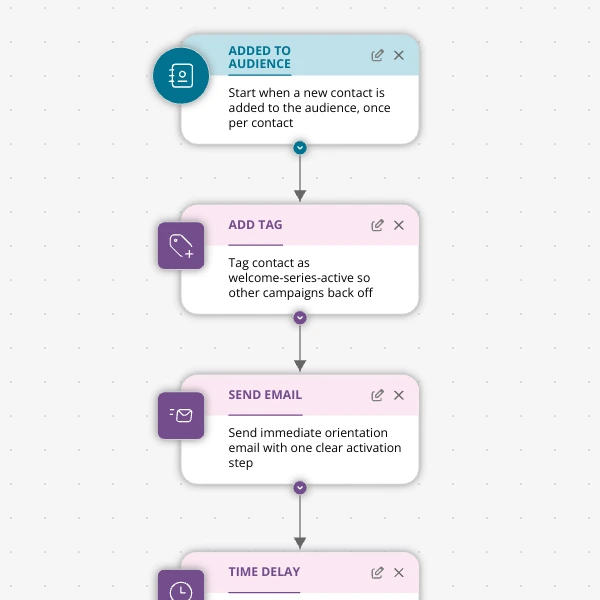
The Shopify app welcome series that turns installs into income
A step-by-step Shopify app welcome email journey for tools like CartSpark, showing how to turn new installs into activated, retained merchants using Spreeflo journeys, tags, and behavioral triggers so fewer trials quietly churn and more trials convert.
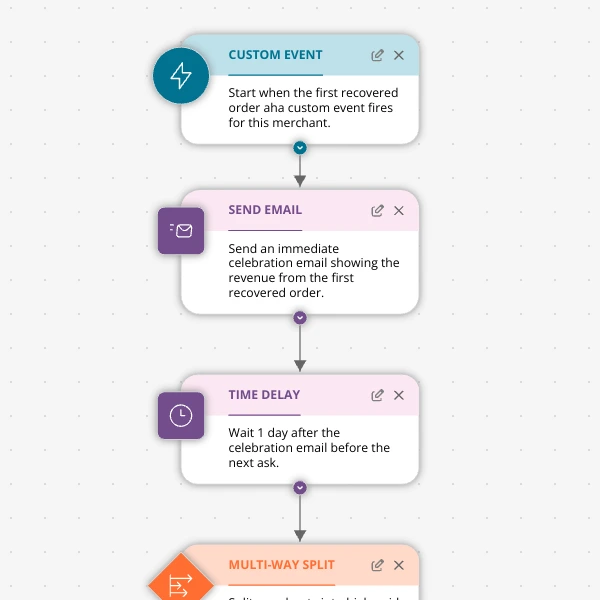
The Aha-Moment Playbook For Shopify Apps: Turn One Magic Action Into Months Of Revenue
A node-by-node playbook for Shopify and e‑commerce apps to center their lifecycle on one aha-moment custom event in Spreeflo, celebrate it, segment merchants by profile and engagement, and turn first recovered value into lasting revenue and retention.
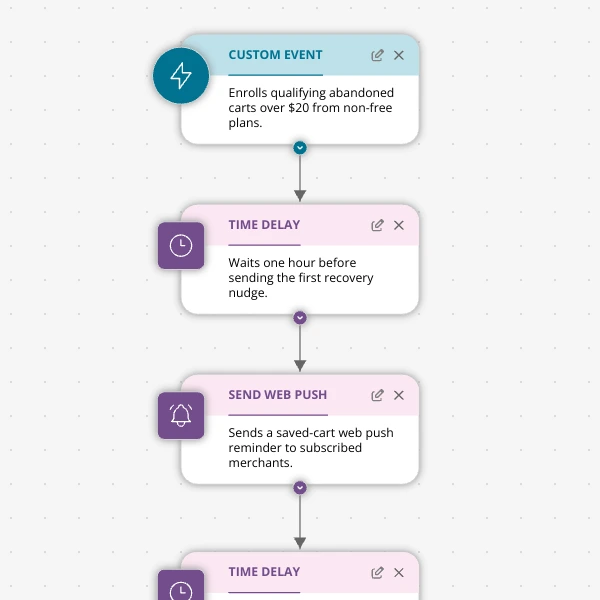
Stop Letting High‑Intent Carts Die: A 3‑Email Recovery Journey for Shopify Apps
A detailed, node-by-node walkthrough of a three-email (plus optional web push) cart-abandonment recovery journey for Shopify apps in Spreeflo, showing how to trigger events, branch on behavior, tag outcomes, and measure recovered carts and revenue.
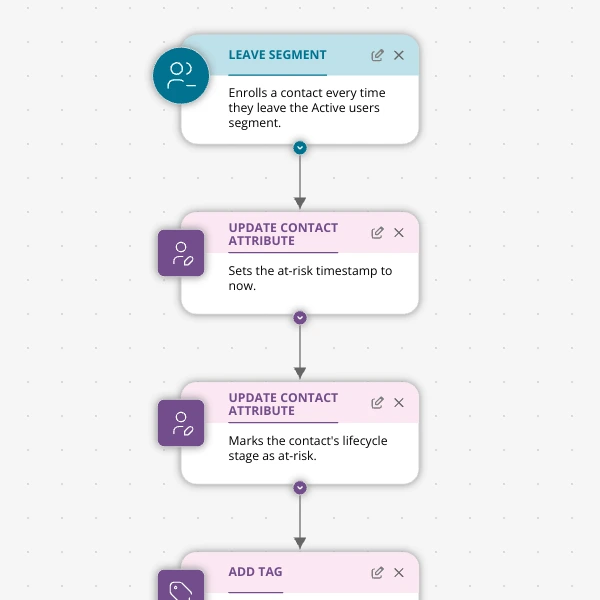
When Active Users Go Dark: A 4‑Touch Win‑Back Journey For Your Shopify App
A detailed, node-by-node Spreeflo journey for winning back previously active Shopify app users who stop engaging, using segment-based triggers, conditional logic, and a four-touch email plus internal alert sequence to recover usage and MRR.