The “Wake the Dead” Journey: How SEO SaaS Teams Turn Cold Leads into Live Deals
This playbook shows SEO SaaS teams how to automatically detect re-engaging cold leads using Spreeflo journeys, tag them as hot, and notify sales with context so they can quickly turn quiet interest into live deals.
Industry
Niche
Pattern
Loading sequence...
Your sales funnel is fuller than you think. A chunk of “dead” SEO leads is quietly opening your emails again, clicking your content, then slipping away with nobody on your team noticing.
The sequence at the top of this page is designed to fix that. It turns every meaningful reopen or click from a previously cold lead into a tagged “hot” contact and a timely nudge to sales, without manual prospecting or CRM gymnastics.
In this playbook, we’ll walk through that journey node by node, explain why it’s built the way it is for an SEO SaaS, and show you how to adapt it to your own stack.
The silent reactivation problem in SEO SaaS
Picture RankPulse, a 3‑person rank tracking SaaS doing ~$35k MRR.
Six months ago, their founder ran a “Win back your lost rankings” campaign to a segment of cold leads. A few dozen people have quietly reopened those emails since. Some even clicked through to pricing or a case study.
But because no one is watching for that behavior in real time, nothing happens:
The lead never gets a human follow‑up.
The AE who originally worked the deal doesn’t know the account is active again.
The pipeline forecast never changes.
For a subscription product selling at $89–$199/month, even a handful of these missed reactivations each quarter is real money left on the table.
This journey is the small, opinionated automation that closes that gap: when a cold contact wakes up and interacts with any of your emails, Spreeflo immediately re-tags them as “hot” and alerts your sales team.
What this journey does in plain language
Before we dive into nodes, let’s define the job of this automation:
Watch email behavior for cold leads.
Any time a contact marked as “cold” opens or clicks a marketing email, they should enter this journey.Confirm they really are cold.
Sometimes a hot or current customer behaves the same way. We only want to trigger a sales re-touch when it’s genuinely a cold lead reactivating.Flip their status for everyone else.
Tag them as “hot” (and optionally remove the “cold” tag), and record when they re-engaged.Tell the right human.
Send an internal email to your sales inbox with the context your AE needs to act quickly and personally.
It’s short, but it relies on a few key ingredients: clear segmentation, good tagging, and the right trigger. That’s where Spreeflo’s journeys, segment builder, and using tags come together.
Pre-work: define “cold lead” and store ownership
The journey assumes you’ve already done two bits of groundwork:
1. A reliable “Cold leads” definition
You can build this as a saved segment with Spreeflo’s segment builder. For an SEO SaaS, a practical starting definition is:
Email Activity: “opened at most 0 times in the last 30 days” for any marketing email.
Optional extras:
Total visits: “less than 2 in the last 30 days.”
Email subscription status: “is Subscribed” (you don’t want to nag unsubscribed contacts).
Name this segment “Cold leads – 30 days”. It gives you a dynamic list of people who haven’t engaged with email or the app recently, even though they’re still subscribed.
You can also mirror this with a “cold-lead” tag that another journey applies and removes based on this same segment. For the sequence you see at the top of this page, we’ll assume you’re using the segment in-journey, which keeps the logic in one place.
2. An “owner” or AE attribute on each contact
To route context back to the original AE, you need to know who that is.
Add a contact attribute like account_owner_name or account_owner_email and keep it updated from your CRM or app:
From your backend: send ownership data into Spreeflo via the Spreeflo API.
From your app: if a logged-in user is browsing, your frontend can call
Spreeflo.identify(...)to update attributes in the browser.
The internal email can’t dynamically change its recipient based on that attribute, but it can include the owner details in the body. In a small team, a shared sales inbox where AEs can quickly filter for their name is usually enough.
These two pieces of detail are the foundation for speaking to each lead uniquely and for routing human attention where it matters.
Node-by-node: how the journey actually runs
Now let’s walk through the sequence itself. Open it in your head alongside this walkthrough; every node below maps to a step in that visual.
1. Trigger: Email Action (the behavior we care about)
Node: Email Action trigger
Config:
Email type: “Any email” (or a specific nurture if you prefer).
Email action: at minimum “Opened”; ideally add a second journey variant for “Link Clicked” if you want higher intent only.
Re-enrollment: ON.
Why this trigger:
“Any email” keeps the journey future-proof. If you add a new SEO checklist campaign later, the trigger still works without edits.
Using an Email Action trigger means you don’t have to instrument anything in your product. You’re working off behavior you already have.
Re-enrollment should be on, because a lead can be cold, re-engage, get worked, cool down again a few months later, then re-engage again. Each of those deserves a fresh alert.
As soon as a contact performs the chosen action, they enter the journey from here.
2. Gate: If/Else to check they’re actually cold
Node: If/Else process
Condition: “Contact is member of segment ‘Cold leads – 30 days’.”
Under the hood, this is a Segment Membership rule in the segment builder: Segment membership is member of segment Cold leads – 30 days.
Why this step matters:
Not everyone who opens an email should trigger sales.
Existing customers, active trials, or current opportunities might open the same broadcast. You don’t want three different people following up with the same account.
By branching immediately, you keep false positives out of your sales queue.
Paths:
Then branch (“is cold”): continue.
Else branch: end the journey with no further actions.
This is the first place where you see how detailed customer data pays off. Without a clear, behavior-based definition of “cold”, you’re either spamming your sales team or ignoring good signals.
3. Action: Add Tag to mark them as hot
Node: Add Tag action
Config:
Tags:
hot-lead, and optionallyreengaged-email.Force tag trigger: OFF (you usually don’t need Added Tag triggers here).
Why tag:
Tags are a simple way to mark status changes that other journeys and reports can understand.
A
hot-leadtag lets you quickly build views like “all hot leads without an opportunity” in downstream tools.A more specific tag like
reengaged-emaillets you later compare performance across different reactivation sources (email vs in-app behavior).
This step embodies the first brand message: you’re capturing detail at the moment it becomes important, not retrofitting guesses later.
4. Optional Action: Remove Tag for “cold-lead”
Node: Remove Tag action
Config:
Tags:
cold-lead.Force tag trigger: OFF.
If you maintain a cold-lead tag in addition to the segment, remove it here. That keeps the contact’s tag state aligned with reality.
You might skip this node if you only use the dynamic segment and don’t maintain a separate tag. The sequence at the top of the page includes it because many teams already use tags heavily to drive sales workflows.
5. Action: Update Contact Attribute with a timestamp
Node: Update Contact Attribute action
Config:
Attribute: a TIMESTAMP attribute, for example
last_reengaged_at.Delete value: OFF.
Update type: “SET_NOW”.
Why bother:
A timestamp lets you see how often each account goes cold and wakes up again.
You can build higher-level segments like “Re-engaged in the last 7 days but no opportunity yet” or “Re-engaged more than 3 times this quarter”.
It’s useful context in the internal email and in sales dashboards.
Because SET_NOW writes the current time when the node executes, you don’t have to manage any dynamic values yourself.
6. Action: Send Internal Email to the sales inbox
Node: Send Internal Email action
Config:
Template: “Cold lead re-engaged – email”.
From: your usual marketing/sales sender identity.
Send only once: leave ON; you rarely want the same internal alert twice in parallel for the same journey run.
Inside the template (built with Spreeflo’s email builder), include:
Who the contact is: name, company, plan, domain.
How they re-engaged: subject line they opened, link clicked if relevant.
When they last went cold:
last_reengaged_atand, if you track it,last_cold_at.Who owns them: the
account_owner_nameattribute.Simple next steps: “Reply to their last thread” or “Send this specific deck.”
Why an internal email instead of a CRM task:
It’s simple to set up inside the same campaign and journey automation flow.
For small teams, a shared sales inbox is often the operational heart of the funnel anyway.
Email is fast; the AE can reply directly to the last thread or drop the lead into their personal cadence.
If you use a heavier CRM and want tasks instead, you can add a Webhook action after this node that posts the contact data into a CRM endpoint and lets that system create an owner-specific task.
At this point, the journey can end. You’ve flipped their status, updated history, and notified a human.
Adapting the pattern for your SEO SaaS
The skeleton above is intentionally simple. Here’s how you can tailor it to your product and sales motion.
Narrow the trigger to your most meaningful emails
If you send frequent content digests, not every open is worth a sales touch.
You can duplicate this journey with slightly different Email Action triggers:
Journey A: Email Action on a specific “We found new keyword opportunities” campaign; treat any open as high intent.
Journey B: Email Action on “pricing” or “case study” campaigns; maybe require “Link Clicked” instead of just opened.
Each journey still gates on “Cold leads – 30 days” but focuses alerts on the moments that map cleanly to sales conversations.
Use more granular cold definitions
For a technical SEO tool with heavy-frequent users, 30 days might be too short. Try variations:
“No opens and fewer than 2 visits in the last 45 days.”
“No email opens and no custom event
checked_rankingstriggered in the last 21 days.”
Those custom events can come from your app with Spreeflo.track(...) in the browser or via the events endpoint of the Spreeflo API on the backend. Once they’re in, they’re first-class conditions in the segment builder and in Custom Event triggers for other journeys.
Route differently for big vs small opportunities
If you track an estimated deal size or plan fit as a contact attribute, insert a Multi-way Split before the internal email:
Branch 1:
plan_fit is Agency→ alert your senior AE.Branch 2:
plan_fit is Starter→ alert your SDR or generic sales inbox.Branch 3 (else): send a lighter-weight internal alert or simply tag without a human touch.
All of these still come from the same Email Action trigger and cold gate, but you’re respecting the value of each account instead of treating every re-engagement equally.
Measuring whether this earns its keep
A journey this short should justify its existence with numbers quickly. Two simple metrics tell you if it’s working.
1. Cold-lead reactivation rate
Define:
Denominator: count of contacts in the “Cold leads – 30 days” segment at the start of a month.
Numerator: count of contacts who receive the
hot-leadtag via this journey in that same month.
This tells you what percentage of cold leads are waking back up through email behavior.
The more detailed your tags and attributes, the more precisely you can break this down: by campaign, by AE, by lead source. That’s brand message one in practice: detailed customer data enabling tailored outreach.
2. Re-touch conversion
For each re-engaged lead, ask: “Did sales do anything with this?”
Some simple options:
Add a
sales_retouch_donetag when someone manually reaches out.Track an event like
demo_bookedorstarted_trialand build a segment “Re-engaged by email AND demo_booked in last 30 days.”
Now compute:
Re-touch rate: percentage of re-engaged leads that actually get a human follow-up.
Conversion rate: percentage of re-engaged leads that move to trial, demo, or closed-won.
When these numbers are visible, your weekly sales meeting changes. Instead of “we should work old leads more,” you have a concrete view of how many “dead” accounts are quietly telling you they’re back in the market and whether your team is catching them.
Why this pattern suits founder-led SEO SaaS teams
As a small SEO SaaS, you probably don’t need a sprawling RevOps stack. You need a few high-impact automations that:
Capture key behavioral moments.
Route them to the right person fast.
Run faithfully in the background while you build product.
This journey does exactly that. It turns your email behavior logs into a live channel for surfacing sales-ready leads, and it does it with a handful of nodes in Spreeflo:
An Email Action trigger to listen for the right behavior.
An If/Else using the segment builder to keep the logic honest.
A couple of tag and attribute updates.
One Send Internal Email to put a name, a domain, and a next step in front of your AE.
You build it once and it keeps working every time a cold lead raises their hand again. That’s founder-level leverage: smarter automation instead of more headcount, and detail-rich contact data so every follow-up feels like it was written for that specific SEO buyer.
If you’re already storing the basics on each lead and sending campaigns, this isn’t a heavy lift. It’s a small, targeted system that catches money already sitting in your list and turns it back into real conversations.
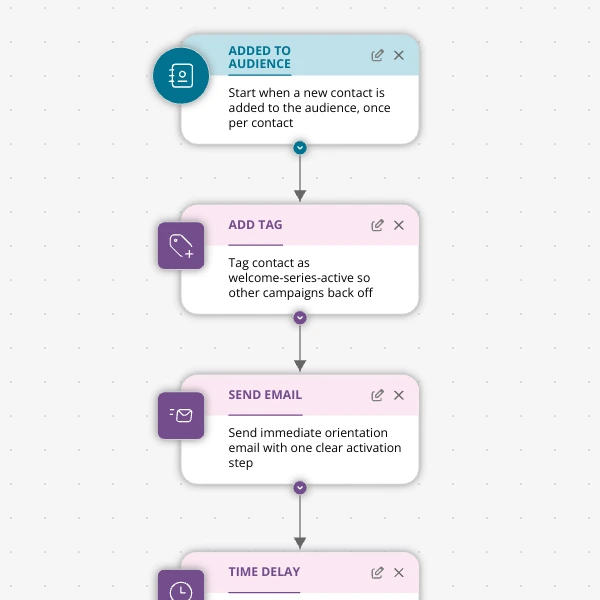
The Shopify app welcome series that turns installs into income
A step-by-step Shopify app welcome email journey for tools like CartSpark, showing how to turn new installs into activated, retained merchants using Spreeflo journeys, tags, and behavioral triggers so fewer trials quietly churn and more trials convert.
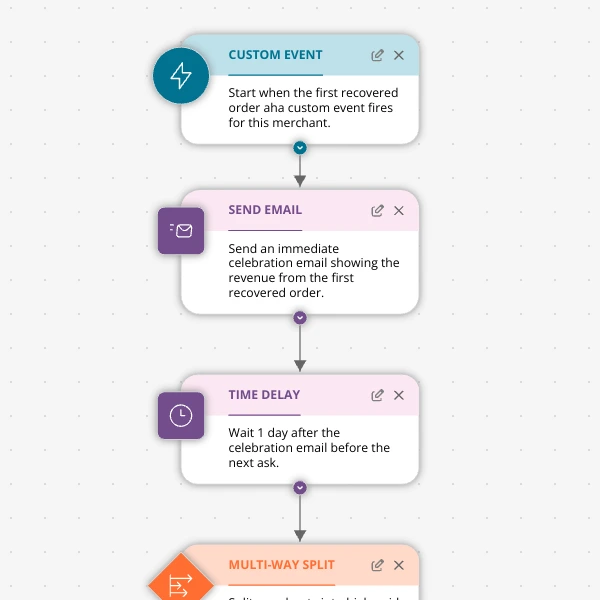
The Aha-Moment Playbook For Shopify Apps: Turn One Magic Action Into Months Of Revenue
A node-by-node playbook for Shopify and e‑commerce apps to center their lifecycle on one aha-moment custom event in Spreeflo, celebrate it, segment merchants by profile and engagement, and turn first recovered value into lasting revenue and retention.
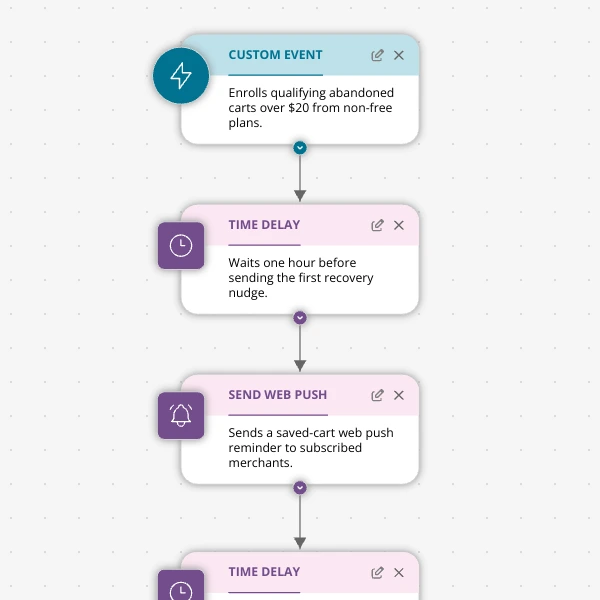
Stop Letting High‑Intent Carts Die: A 3‑Email Recovery Journey for Shopify Apps
A detailed, node-by-node walkthrough of a three-email (plus optional web push) cart-abandonment recovery journey for Shopify apps in Spreeflo, showing how to trigger events, branch on behavior, tag outcomes, and measure recovered carts and revenue.
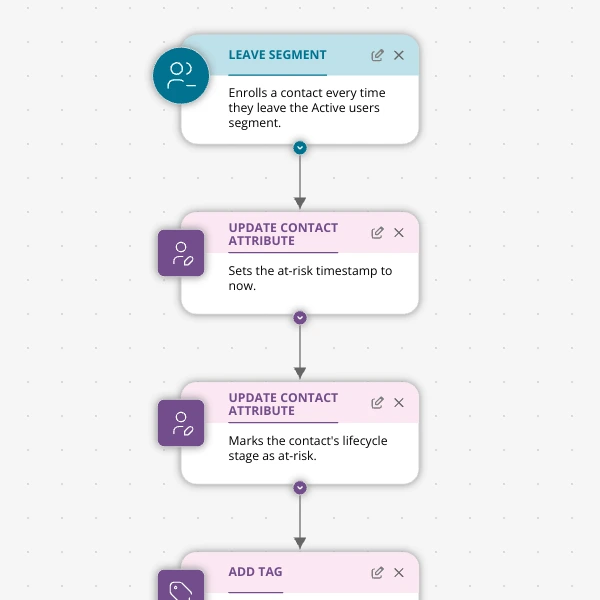
When Active Users Go Dark: A 4‑Touch Win‑Back Journey For Your Shopify App
A detailed, node-by-node Spreeflo journey for winning back previously active Shopify app users who stop engaging, using segment-based triggers, conditional logic, and a four-touch email plus internal alert sequence to recover usage and MRR.